
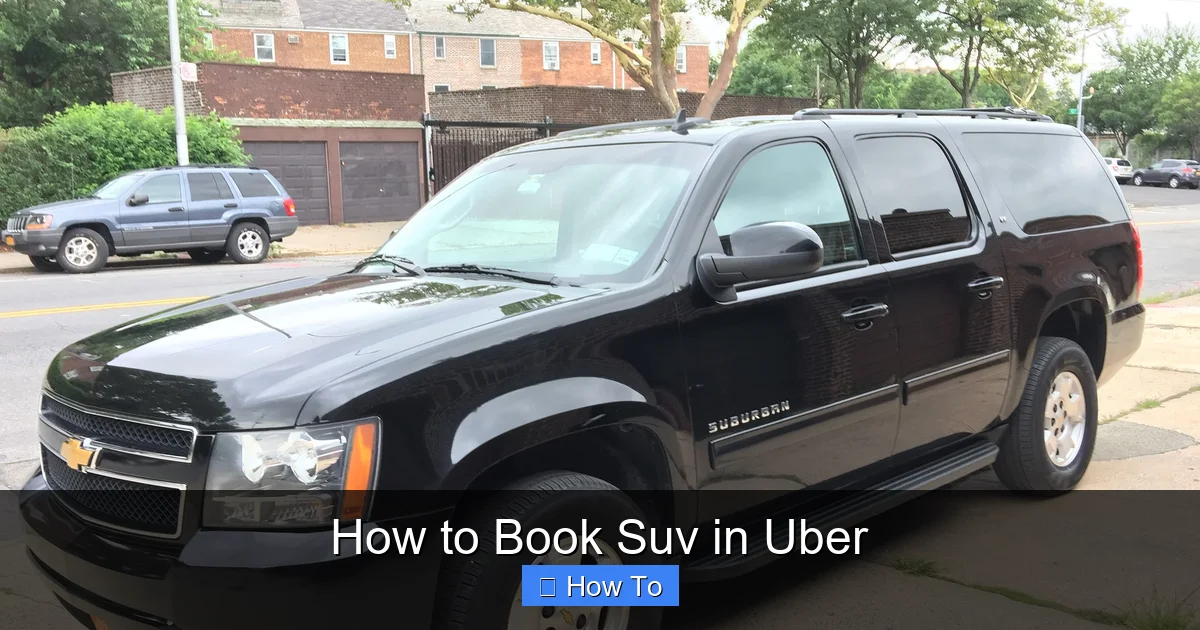
This guide walks you through how to book an SUV in Uber, covering everything from selecting the right vehicle type to confirming your ride. Whether you’re traveling with a group or need extra space, we’ll help you get the perfect ride every time.
Key Takeaways
- Choose the Right Uber SUV Option: Uber offers several SUV-friendly services like UberXL, Uber Comfort, and Uber Black SUV—each suited for different needs and budgets.
- Use the Uber App to Select Your Ride Type: Open the app, enter your destination, and tap on the vehicle icon to switch to an SUV option before confirming your trip.
- Book in Advance for Better Availability: Schedule your SUV ride ahead of time, especially during peak hours or for airport trips, to ensure a vehicle is ready when you need it.
- Check Pricing Before Confirming: SUV rides cost more than standard UberX—review the fare estimate to avoid surprises.
- Communicate with Your Driver: Use the in-app messaging or call feature to coordinate pickup, especially if you have luggage or special requests.
- Troubleshoot Common Issues: If no SUVs are available, try refreshing the app, changing your pickup location, or switching to a nearby ride type.
- Cancel Responsibly: Avoid cancellation fees by canceling only when necessary and within the allowed time frame.
How to Book an SUV in Uber: A Complete Step-by-Step Guide
Whether you’re heading to the airport with a full suitcase, traveling with a group of friends, or just prefer a roomier ride, booking an SUV through Uber is a smart and convenient choice. With larger vehicles designed for comfort and extra space, Uber’s SUV options make it easy to get where you’re going without the stress of cramped seating or limited trunk room.
In this comprehensive guide, we’ll walk you through how to book an SUV in Uber—from opening the app to stepping into your ride. You’ll learn about the different SUV ride types available, how to select the right one for your needs, and how to schedule or modify your trip. We’ll also share practical tips to ensure a smooth experience, troubleshoot common issues, and answer frequently asked questions.
By the end of this guide, you’ll be able to confidently book an SUV in Uber every time—whether it’s for a family outing, a business trip, or a night on the town.
Why Choose an SUV Ride in Uber?
Before diving into the steps, it’s helpful to understand why you might want to book an SUV in the first place. While standard UberX rides are great for solo travelers or couples, SUVs offer several advantages:
- More Space: SUVs typically seat 6–7 passengers, making them ideal for group travel.
- Larger Trunk Capacity: Perfect for carrying luggage, groceries, sports gear, or shopping bags.
- Comfort and Height: Higher seating position and more legroom provide a more comfortable ride, especially on longer trips.
- Premium Experience: Some SUV options, like Uber Black SUV, offer luxury vehicles with professional drivers.
Whether you’re picking up relatives from the airport, going on a weekend trip, or just want a more relaxed ride, choosing an SUV can make a big difference.
Types of SUV Rides Available on Uber
Uber offers several ride options that include SUVs. Knowing the differences will help you pick the best one for your needs.
UberXL
UberXL is the most popular SUV option. It’s designed for groups of up to 6 passengers and features larger vehicles like the Toyota Highlander, Honda Pilot, or Ford Explorer. It’s more affordable than premium options and widely available in most cities.
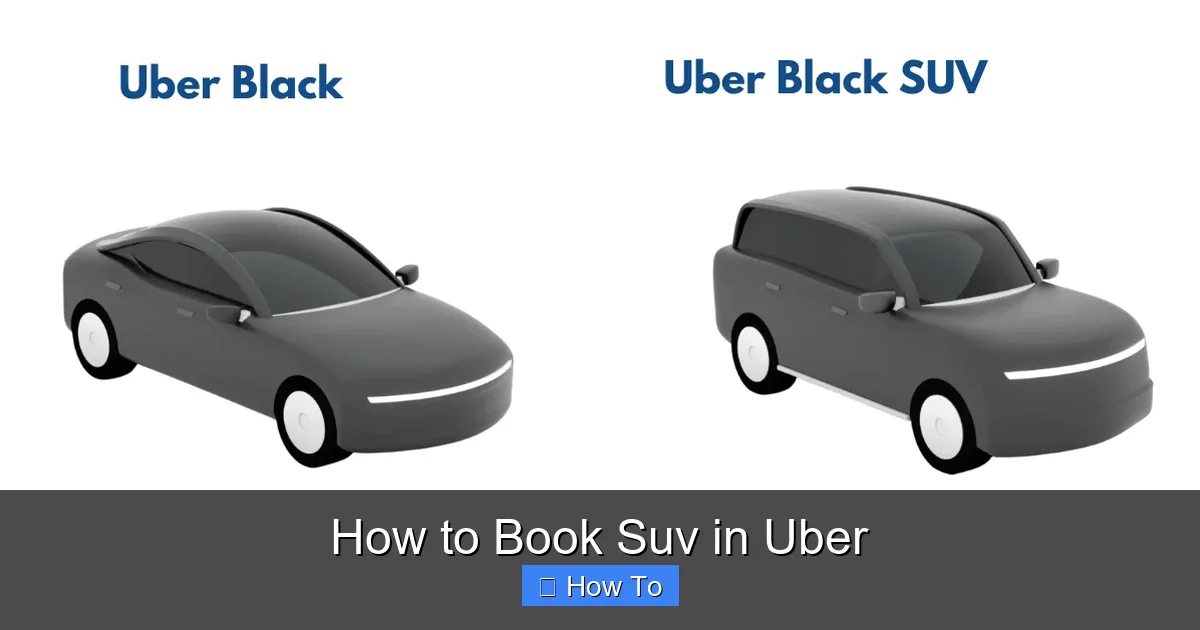
Visual guide about How to Book Suv in Uber
Image source: digmagonline.com
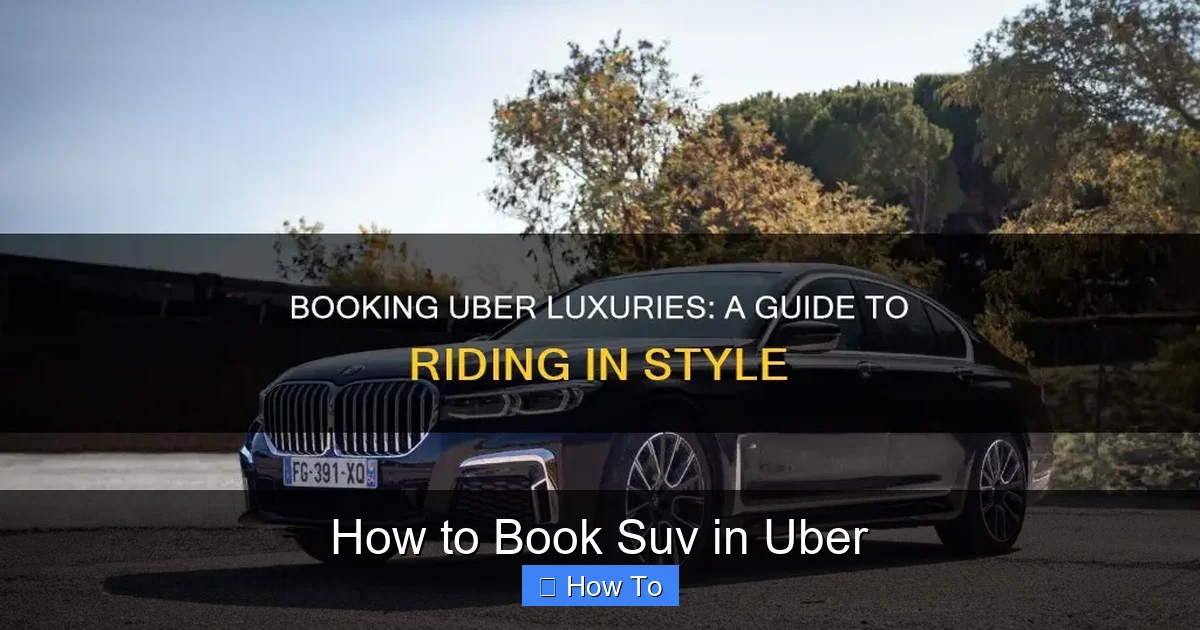
Visual guide about How to Book Suv in Uber
Image source: shunauto.com
Uber Comfort
Uber Comfort offers newer cars with extra legroom. While not all Comfort rides are SUVs, many drivers use SUVs to meet the comfort criteria. This option is great if you want a bit more space without paying for a full SUV upgrade.
Uber Black SUV
For a luxury experience, Uber Black SUV provides high-end SUVs like the Cadillac Escalade or Lincoln Navigator, driven by professional chauffeurs. This is ideal for business meetings, special events, or when you want a premium ride.
UberXL vs. Uber Black SUV: Which Should You Choose?
If you’re on a budget and just need space, go with UberXL. If you want a more upscale experience with a professional driver, Uber Black SUV is the way to go. For everyday group travel, UberXL is usually the best balance of cost and comfort.
Step-by-Step: How to Book an SUV in Uber
Now that you know your options, let’s walk through the process of booking an SUV in Uber. The steps are simple and take just a few taps.
Step 1: Open the Uber App
Launch the Uber app on your smartphone. Make sure you’re logged in with your account. If you don’t have the app, download it from the App Store (iOS) or Google Play Store (Android).
Step 2: Enter Your Destination
Tap the “Where to?” box at the top of the screen. Type in your destination—this could be an address, landmark, or airport. The app will suggest options as you type. Select the correct one.
Step 3: Choose Your Ride Type
After entering your destination, you’ll see a list of available ride options. Look for the vehicle icons at the bottom of the screen. Tap on the icon to see all available ride types.
Scroll through the options and select one that includes an SUV:
- Tap UberXL for a standard SUV ride.
- Tap Uber Comfort if you want extra legroom (may include SUVs).
- Tap Uber Black SUV for a luxury SUV experience.
Each option will show an estimated arrival time and fare. Take a moment to compare them.
Step 4: Review the Fare Estimate
Before confirming, check the fare estimate displayed under your selected ride type. SUV rides are more expensive than UberX—typically 1.5x to 2x the price—so make sure it fits your budget.
If the price seems too high, you can:
- Wait a few minutes and refresh the app (prices can drop).
- Choose a different pickup location slightly farther away.
- Consider a standard UberX if space isn’t critical.
Step 5: Confirm Your Pickup Location
Make sure your pickup location is accurate. You can drag the pin on the map to adjust it. A precise pickup point helps your driver find you quickly, especially in busy areas like malls or airports.
Step 6: Request Your Ride
Once everything looks good, tap the Confirm button. The app will search for nearby drivers who offer the SUV ride type you selected.
You’ll see a countdown timer showing how long it might take for a driver to accept your request. Most SUV rides arrive within 5–15 minutes, depending on demand and location.
Step 7: Track Your Driver
Once a driver accepts, you’ll see their name, photo, vehicle details, and license plate. You can track their location in real time on the map.
Use the in-app messaging or call feature to contact your driver if needed—especially if you’re hard to find or have special instructions (e.g., “I’m wearing a red jacket” or “I have two large suitcases”).
Step 8: Enjoy Your Ride
When your driver arrives, confirm their identity and vehicle details before getting in. Most SUVs have ample space, so loading luggage or bags should be easy.
During the ride, you can adjust the temperature, play music (if the driver allows), or simply relax. Remember to rate your driver at the end of the trip.
How to Schedule an SUV Ride in Advance
If you know you’ll need an SUV at a specific time—like for an early morning flight or a wedding—you can schedule your ride in advance.
Step 1: Open the App and Enter Your Trip Details
Follow the same steps as above: enter your destination and select your preferred SUV ride type (e.g., UberXL).
Step 2: Tap the Schedule Button
Instead of tapping “Confirm,” look for the Schedule option (usually a clock icon). Tap it to set a future pickup time.
Step 3: Choose Your Pickup Time
Select the date and time you want to be picked up. Uber allows scheduling up to 30 days in advance.
Tip: Schedule at least 15–30 minutes earlier than needed to account for traffic or delays.
Step 4: Confirm the Scheduled Ride
Review your details and tap Schedule Ride. You’ll receive a confirmation notification. The app will remind you 24 hours and 1 hour before your pickup time.
What Happens on the Day of Your Ride?
Uber will automatically request a driver 30 minutes before your scheduled time. You can still cancel or modify the ride up to 30 minutes before pickup without a fee.
Tips for Booking an SUV in Uber
To make the most of your SUV ride, keep these practical tips in mind:
- Book Early During Peak Times: Rush hour, weekends, and holidays mean higher demand. Book your SUV ride as early as possible to avoid long wait times.
- Check Vehicle Details: After your ride is confirmed, review the vehicle make and model. If it’s not an SUV (e.g., a minivan), you can cancel and rebook if needed.
- Use Uber Rewards: If you’re a frequent rider, join Uber Rewards to earn points on every trip. Points can be redeemed for ride discounts or upgrades.
- Share Your Trip Status: Use the “Share Status” feature to send your trip details to a friend or family member for safety.
- Tip Your Driver: While tipping isn’t required, it’s appreciated—especially for SUV drivers who may have larger vehicles and higher operating costs.
Troubleshooting Common Issues
Sometimes, booking an SUV in Uber doesn’t go as smoothly as planned. Here’s how to handle common problems.
No SUVs Available?
If you don’t see UberXL or Uber Black SUV as an option, it could mean:
- There are no SUV drivers nearby.
- Demand is too high in your area.
- Your location has limited Uber service.
Solutions:
- Wait a few minutes and refresh the app.
- Move to a nearby location with better coverage (e.g., a main street or transit hub).
- Try booking a standard UberX and ask the driver if they can accommodate your luggage.
- Use the “Schedule” feature to book for a less busy time.
Wrong Vehicle Type Arrives
Occasionally, a driver may arrive in a vehicle that’s not an SUV (e.g., a minivan or large sedan). While these can still work, they may not offer the same space.
What to do:
- Politely ask the driver if they can accommodate your luggage or group.
- If it’s not suitable, cancel the ride (within the free cancellation window) and rebook.
- Report the issue in the app under “Help” to improve service quality.
High Fare Estimates
Surge pricing during busy times can make SUV rides very expensive.
How to save:
- Wait for surge to end (prices usually drop within 15–30 minutes).
- Choose a different ride type (e.g., Uber Comfort instead of UberXL).
- Walk a short distance to a less busy pickup zone.
Can’t Find Your Driver
If your driver arrives but you can’t locate them:
- Use the in-app call or message feature to coordinate.
- Check the vehicle description and license plate.
- Look for the driver’s real-time location on the map.
- If they leave, request a new ride and report the issue.
How to Cancel an SUV Ride
If your plans change, you can cancel your ride—but be aware of fees.
- You can cancel free of charge before the driver accepts your request.
- Once accepted, you have a short window (usually 2–5 minutes) to cancel without a fee.
- After that, a cancellation fee may apply (typically $5–$10, depending on your city).
To cancel:
- Open the Uber app.
- Tap the trip details at the bottom of the screen.
- Tap Cancel Trip.
- Confirm your cancellation.
Tip: If you’re running late, message your driver instead of canceling—they may wait a few extra minutes.
Conclusion
Booking an SUV in Uber is simple, convenient, and perfect for when you need extra space, comfort, or a premium experience. Whether you choose UberXL for everyday group travel or Uber Black SUV for a special occasion, the process is straightforward and takes just a few taps.
By following this guide, you’ll know exactly how to select the right ride type, schedule in advance, manage costs, and troubleshoot any issues that arise. With the right preparation, your next SUV ride will be smooth, stress-free, and exactly what you need.
So the next time you’re packing for a trip, heading to the airport, or just want a more comfortable ride, remember: booking an SUV in Uber is just a tap away.