
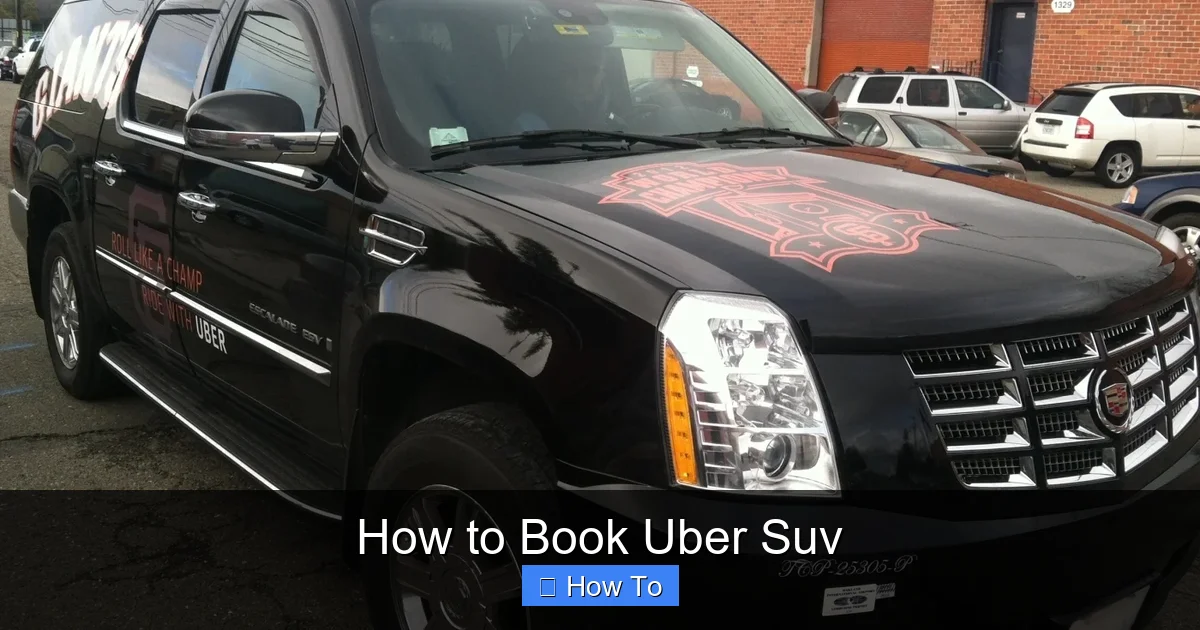
Booking an Uber SUV is simple and ideal for groups, luggage, or comfort. This guide walks you through every step—from opening the app to confirming your ride—with tips to save time and money.
Key Takeaways
- Uber SUV offers more space: Perfect for families, groups, or extra luggage with seating for up to 6 passengers.
- Available in select cities: Not all locations offer Uber SUV, so check availability in your area first.
- Higher fare than standard rides: Expect to pay more than UberX, but the comfort and space are worth it for many trips.
- Book in advance when possible: Use the “Schedule” feature for airport pickups or important events to avoid last-minute unavailability.
- Confirm driver and vehicle details: Always verify the car model, license plate, and driver photo before getting in.
- Tip your driver appropriately: While not required, tipping 15–20% shows appreciation for excellent service.
- Use promo codes and subscriptions: Uber Pass or promo codes can reduce costs on SUV rides.
How to Book Uber SUV: A Complete Step-by-Step Guide
Whether you’re heading to the airport with a full suitcase, traveling with a group of friends, or just want a more comfortable ride, booking an Uber SUV can be a game-changer. Unlike standard UberX rides, Uber SUV offers larger vehicles—typically SUVs or minivans—that seat up to six passengers and provide extra legroom and trunk space. In this comprehensive guide, we’ll walk you through everything you need to know about how to book Uber SUV, from checking availability to confirming your ride and troubleshooting common issues.
By the end of this article, you’ll be able to confidently request an Uber SUV anytime, anywhere—whether it’s for a family outing, a business trip, or a night out with friends. We’ll cover the app interface, pricing, scheduling options, safety tips, and even how to save money on your rides. Let’s get started!
What Is Uber SUV?
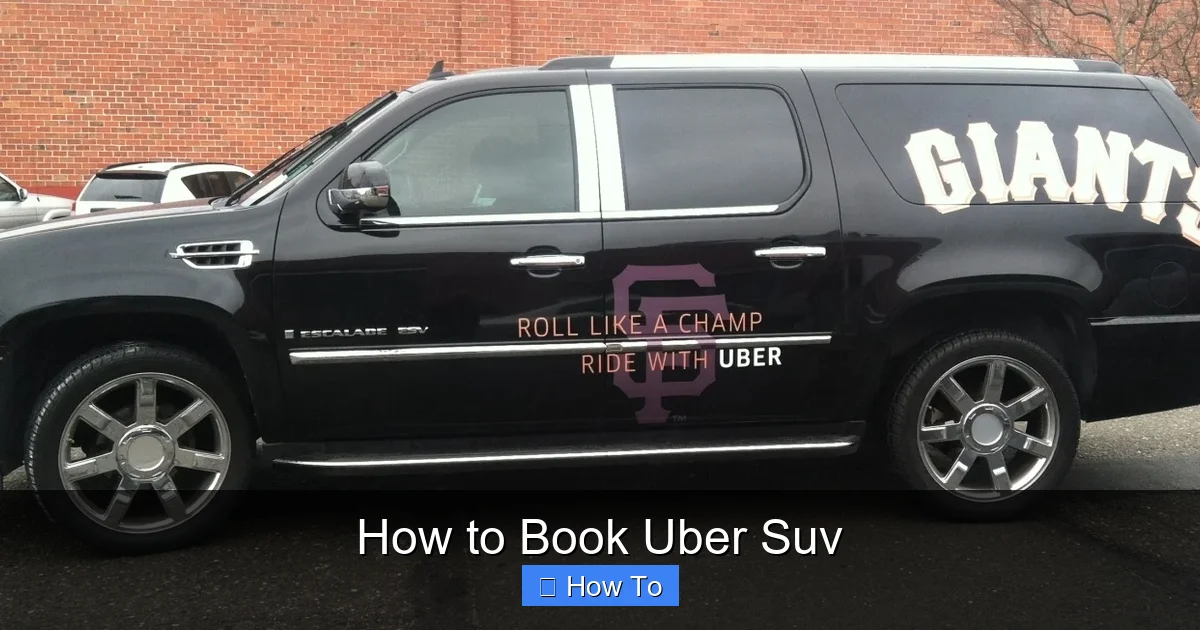
Visual guide about How to Book Uber Suv
Image source: customvehiclewraps.com
Before diving into the booking process, it’s important to understand what Uber SUV actually is. Uber SUV is a premium ride option offered by Uber that uses larger vehicles, such as SUVs, crossovers, or minivans, to accommodate more passengers and luggage. These vehicles are typically driven by professional drivers who have passed Uber’s background checks and vehicle inspections.
Unlike UberX, which usually features compact or midsize sedans, Uber SUV is designed for comfort and capacity. It’s ideal for:
– Families traveling with children and car seats
– Groups of 4–6 people
– Travelers with heavy luggage or equipment
– Business travelers needing a more professional appearance
– Anyone who prefers a roomier, more luxurious ride
Uber SUV is not available in every city, so availability depends on your location. Major metropolitan areas like New York, Los Angeles, Chicago, and Miami typically offer the service, but smaller towns may not. We’ll show you how to check if it’s available where you are.
Step 1: Open the Uber App

Visual guide about How to Book Uber Suv
Image source: s3.amazonaws.com
The first step to booking an Uber SUV is opening the Uber app on your smartphone. If you don’t already have it, download it from the Apple App Store (for iPhone) or Google Play Store (for Android). Once installed, open the app and log in using your existing Uber account or create a new one.
Logging In or Creating an Account
If you’re new to Uber, tap “Sign Up” and enter your name, phone number, email, and payment method. You’ll need a valid credit card, debit card, or PayPal account to book a ride. Existing users can simply enter their phone number or email and password to log in.
Granting Permissions
For the best experience, allow Uber to access your location. This helps the app find your pickup spot accurately and shows nearby drivers. You can adjust these permissions in your phone’s settings if needed.
Step 2: Enter Your Pickup and Drop-Off Locations
Once you’re logged in, you’ll see the main screen with a map and a search bar at the top. This is where you’ll enter your pickup and destination addresses.
Setting Your Pickup Location
Tap the “Where to?” field at the top of the screen. The app will automatically detect your current location using GPS. If it’s accurate, you can leave it as is. If not, tap the map or type in your exact pickup address. For example, if you’re at a hotel, enter the full address including the suite or floor if applicable.
Entering Your Destination
After setting your pickup location, tap the “Where to?” field again (or the destination field that appears) and type in your drop-off address. You can search by address, business name, or landmark. For instance, “Los Angeles International Airport (LAX)” or “Central Park, New York.”
Using Saved Locations
To save time, Uber allows you to save frequently used locations like “Home,” “Work,” or “Airport.” Tap the star icon next to any address to save it for future use.
Step 3: Select Uber SUV from Ride Options
After entering your pickup and drop-off locations, Uber will display a list of available ride options. This is where you’ll choose Uber SUV.
Understanding the Ride Menu
You’ll see several options such as:
– UberX (standard ride, 1–4 passengers)
– Uber Comfort (newer cars with extra legroom)
– UberXL (larger vehicles, 1–6 passengers)
– Uber SUV (premium SUVs, 1–6 passengers)
– Uber Black (luxury sedans)
– Uber Black SUV (luxury SUVs)
Note: Uber SUV and UberXL are similar in capacity, but Uber SUV uses higher-end SUVs and may cost more. In some cities, Uber SUV has been rebranded or merged with UberXL, so look for the vehicle type description.
Choosing Uber SUV
Tap on the Uber SUV option. The app will show an estimated fare, travel time, and vehicle details. If Uber SUV isn’t available, the option won’t appear—this means there are no SUVs nearby or the service isn’t offered in your area.
Comparing Ride Options
Before confirming, compare the price and ETA of Uber SUV with other options. For example:
– UberX: $18, 8-minute wait
– Uber Comfort: $22, 6-minute wait
– Uber SUV: $32, 10-minute wait
If space and comfort are priorities, the extra cost may be worth it.
Step 4: Confirm Your Ride Details
Once you’ve selected Uber SUV, review your ride details carefully before confirming.
Check Pickup and Drop-Off Addresses
Make sure both locations are correct. A wrong address could delay your ride or result in extra charges.
Review Fare Estimate
The app will show a fare estimate based on distance, traffic, and demand. This is not the final price—actual cost may vary due to route changes or waiting time. If surge pricing is active (indicated by a multiplier like “1.5x”), the fare will be higher.
Select Payment Method
Ensure your preferred payment method is selected. You can choose from saved cards, PayPal, or even split the fare with others using Uber’s split fare feature.
Add Special Instructions (Optional)
Tap “Add special instructions” to leave notes for your driver, such as:
– “Please call when you arrive”
– “I have two large suitcases”
– “Child seat needed”
This helps the driver prepare and improves your experience.
Step 5: Request Your Uber SUV
After reviewing all details, tap the “Confirm Uber SUV” button at the bottom of the screen. The app will now search for nearby drivers who offer Uber SUV.
Waiting for a Match
You’ll see a loading screen with a message like “Looking for a driver.” This usually takes 1–3 minutes, but can be longer during peak hours or in low-demand areas.
Driver Accepts Your Request
Once a driver accepts, you’ll see their name, photo, vehicle make and model, license plate number, and estimated arrival time. For example:
– Driver: Maria S.
– Car: 2022 Toyota Highlander
– License Plate: ABC1234
– ETA: 7 minutes
Track Your Driver in Real Time
The map will show your driver’s location as they approach. You can watch their progress and receive notifications when they’re 1 minute away.
Step 6: Meet Your Driver and Start the Ride
When your driver arrives, follow these steps to ensure a smooth pickup.
Verify the Vehicle and Driver
Before getting in, double-check:
– The car matches the make and model in the app
– The license plate is correct
– The driver’s photo matches the person behind the wheel
This is a crucial safety step—never get into a vehicle that doesn’t match the app details.
Confirm Your Identity
The driver may ask for your name or destination to confirm they have the right passenger. Simply state your name or repeat your drop-off address.
Load Your Luggage
One of the biggest advantages of Uber SUV is the extra trunk space. Open the rear door or liftgate and place your bags securely. If you have oversized items, let the driver know in advance.
Buckle Up and Enjoy the Ride
Once everyone is seated and belted, your driver will start the trip. You can follow the route on the app and share your trip status with friends or family for safety.
Step 7: Pay and Rate Your Driver
After reaching your destination, your ride will end automatically. Payment is processed through the app using your selected method.
Automatic Payment
The fare will be charged to your card or PayPal account. You’ll receive a digital receipt via email and in the app.
Adding a Tip
You can tip your driver directly in the app. After the ride, tap “Add Tip” and choose 15%, 18%, 20%, or a custom amount. Tipping is optional but appreciated, especially for excellent service.
Rating Your Driver
Uber will prompt you to rate your driver from 1 to 5 stars and leave optional feedback. Honest reviews help maintain high service standards.
How to Schedule an Uber SUV in Advance
If you need an Uber SUV for a specific time—like an early morning flight or a wedding—you can schedule it in advance.
Using the “Schedule” Feature
After selecting Uber SUV, tap the clock icon (usually near the confirm button) to schedule your ride. Choose your pickup date and time (up to 30 days in advance).
Benefits of Scheduling
– Guaranteed availability during busy times
– No last-minute stress
– Better planning for time-sensitive trips
Important Notes
– The fare estimate may change if demand increases before your scheduled time
– You can cancel up to 60 minutes before pickup without a fee
– The driver will receive your request 30–60 minutes before the scheduled time
Tips for a Better Uber SUV Experience
Make the most of your Uber SUV ride with these practical tips.
Book During Off-Peak Hours
Fares are lower and availability is higher during mid-morning or early afternoon. Avoid rush hour (7–9 AM and 5–7 PM) if possible.
Use Uber Pass for Savings
Uber Pass is a subscription service ($9.99/month) that offers:
– Discounted fares on all rides
– Priority pickup
– Waived cancellation fees
If you frequently book Uber SUV, this can save you money.
Check for Promo Codes
Look for promo codes in the app under “Wallet” > “Promotions.” New users often get $10–$20 off their first ride.
Prepare for Luggage
Pack efficiently and label your bags. If you have fragile items, inform the driver.
Be Ready on Time
Drivers wait up to 5 minutes after arrival. Being late may result in cancellation fees.
Troubleshooting Common Issues
Sometimes things don’t go as planned. Here’s how to handle common problems.
No Uber SUV Available
If Uber SUV doesn’t appear as an option:
– Check if the service is offered in your city
– Try again in 10–15 minutes
– Consider UberXL as an alternative
Driver Cancels or Doesn’t Show Up
If your driver cancels or doesn’t arrive:
– Wait a few minutes—sometimes drivers get delayed
– Request another ride
– Contact Uber support via the app if the issue persists
Incorrect Fare Charged
If you’re charged more than the estimate:
– Check if surge pricing was active
– Review the trip details in the app
– Dispute the charge through “Help” > “Trip Issues”
Vehicle Doesn’t Match Description
If the car doesn’t match the app:
– Do not get in
– Cancel the ride (no fee if driver hasn’t arrived)
– Report the issue to Uber
Is Uber SUV Worth It?
Deciding whether to book Uber SUV depends on your needs.
When It’s Worth It
– Traveling with 4+ people
– Carrying heavy luggage or equipment
– Needing a more comfortable or professional ride
– Attending a special event
When to Choose a Standard Ride
– Solo or couple travel
– Light luggage
– Budget-conscious trips
– Short distances
In most cases, the extra space and comfort of Uber SUV justify the higher cost—especially for group travel or important occasions.
Conclusion
Booking an Uber SUV is a straightforward process that can greatly enhance your travel experience. From opening the app to confirming your ride and tipping your driver, each step is designed to be simple and user-friendly. Whether you’re heading to the airport, attending a wedding, or just want a more comfortable ride, Uber SUV offers the space, safety, and convenience you need.
Remember to check availability in your area, compare ride options, and use scheduling or promo codes to save time and money. Always verify your driver and vehicle before getting in, and don’t forget to tip for great service.
With this guide, you’re now equipped to book Uber SUV like a pro. Safe travels!