

This guide walks you through how to change the clock on a Nissan SUV across popular models including the Rogue, Pathfinder, and Murano. You’ll find clear, step-by-step instructions, troubleshooting tips, and answers to common questions.
Key Takeaways
- Know your model and year: Clock settings vary by Nissan SUV model and infotainment system. Always check your owner’s manual first.
- Use the touchscreen or steering wheel controls: Most modern Nissan SUVs allow clock adjustments via the center display or steering wheel buttons.
- Enable automatic time sync: Linking your clock to GPS or your smartphone ensures accurate time without manual updates.
- Manual override is available: If auto-sync fails, you can manually set the time using the settings menu.
- Battery disconnect resets the clock: After replacing the car battery, you may need to reset the clock manually.
- Older models use physical buttons: Pre-2015 Nissan SUVs often require using dashboard or radio buttons to adjust time.
- Keep firmware updated: Software updates can fix bugs that prevent clock settings from saving properly.
How to Change Clock on Nissan SUV: A Complete Step-by-Step Guide
Keeping your Nissan SUV’s clock accurate is more than just a convenience—it helps you stay on schedule, sync with navigation systems, and maintain a sense of organization while driving. Whether you’ve just switched to daylight saving time, replaced your car battery, or noticed the clock is off by a few minutes, knowing how to change the clock on your Nissan SUV is a useful skill.
In this comprehensive guide, we’ll walk you through the process of adjusting the clock on various Nissan SUV models, including the popular Rogue, Pathfinder, Murano, and Armada. We’ll cover both older vehicles with basic radio controls and newer models equipped with advanced infotainment systems. You’ll learn how to set the time manually, enable automatic time synchronization, and troubleshoot common issues.
By the end of this guide, you’ll be able to confidently update your Nissan SUV’s clock—no matter the year or trim level. Let’s get started!
Why the Clock Might Need Adjusting

Visual guide about How to Change Clock on Nissan Suv
Image source: images.dealer.com
Before diving into the steps, it’s helpful to understand why your Nissan SUV’s clock might need changing in the first place. Here are the most common reasons:
- Daylight Saving Time: Twice a year, most regions shift the time forward or back by one hour. If your vehicle doesn’t auto-update, you’ll need to adjust it manually.
- Battery Replacement or Disconnect: When the car battery is disconnected or replaced, the onboard electronics—including the clock—may lose power and reset.
- Time Zone Changes: If you’ve traveled across time zones and your SUV doesn’t have GPS-based time sync, the clock may still show the old time.
- System Glitches: Occasionally, software bugs or firmware issues can cause the clock to freeze or display incorrect time.
- Manual Override Needed: Even with auto-sync enabled, you might want to set a custom time for testing or personal preference.
Understanding these scenarios helps you choose the right method for updating your clock. Now, let’s look at how to do it based on your Nissan SUV’s model and infotainment system.
How to Change the Clock on a Nissan Rogue (2014–Present)
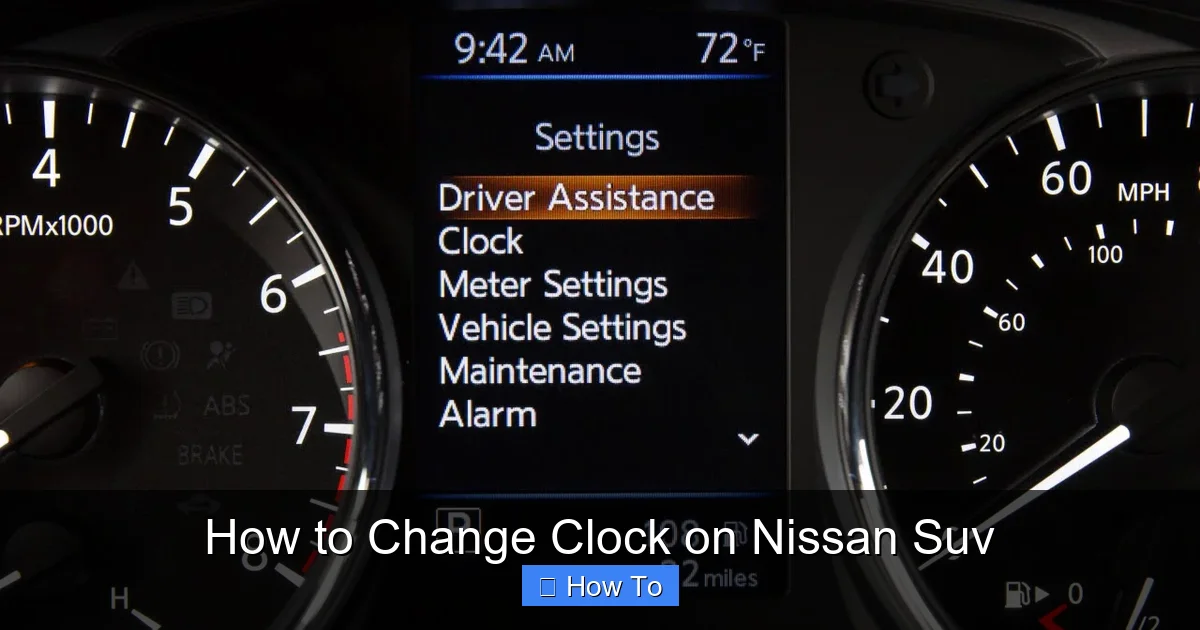
Visual guide about How to Change Clock on Nissan Suv
Image source: i.ytimg.com
The Nissan Rogue is one of the brand’s most popular SUVs, and its clock adjustment process varies slightly depending on the model year and infotainment system. Here’s how to change the clock on a Nissan Rogue from 2014 to the latest models.
For 2014–2019 Nissan Rogue (With NissanConnect or Basic Display)
If your Rogue has a basic touchscreen or the older NissanConnect system, follow these steps:
- Turn on the ignition. You don’t need to start the engine—just press the “Start” button without your foot on the brake to power up the electronics.
- Press the “Menu” or “Settings” button. This is usually located on the center console or steering wheel.
- Navigate to “Clock” or “Time Settings.” Use the touchscreen or arrow buttons to find this option.
- Select “Manual” or “Auto” time setting. If you choose “Auto,” the system will sync with GPS or your connected phone (if supported). For manual adjustment, select “Manual.”
- Adjust the hour and minute. Use the on-screen controls to set the correct time. Some models allow you to tap the hour or minute field and use +/- buttons.
- Confirm and save. Press “OK” or “Set” to apply the changes.
Tip: If your Rogue has a physical “Clock” button on the radio, press and hold it for 3 seconds to enter time-setting mode.
For 2020–2024 Nissan Rogue (With Advanced NissanConnect Services)
Newer Rogue models come with upgraded infotainment systems that support over-the-air updates and better integration with smartphones. Here’s how to change the clock:
- Power on the vehicle. Press the ignition button to turn on the electronics.
- Tap the “Settings” icon on the home screen. This looks like a gear or wrench symbol.
- Select “Clock” from the menu.
- Toggle “Automatic Time Sync” on or off. When enabled, the clock updates based on GPS or your phone’s time via Apple CarPlay or Android Auto.
- If using manual mode, tap “Set Time Manually.” Adjust the hour and minute using the on-screen dial or numeric keypad.
- Press “Save” to confirm.
Pro Tip: If your phone is connected via Bluetooth or USB, enabling “Sync with Phone Time” ensures your clock stays accurate even when traveling.
How to Change the Clock on a Nissan Pathfinder (2013–Present)
The Nissan Pathfinder shares many features with the Rogue, but its interface can differ slightly. Here’s how to adjust the clock on various Pathfinder models.
For 2013–2019 Nissan Pathfinder
These models typically use a center display with physical buttons or a touchscreen. Follow these steps:
- Turn on the ignition.
- Press the “Menu” button on the center console.
- Use the arrow keys to select “Clock Settings.”
- Choose “Manual” or “Auto” mode.
- In manual mode, press “Set Time” and adjust using the +/- buttons.
- Press “OK” to save.
Some older Pathfinders have a dedicated “Clock” button on the radio face. Press and hold it for 3–5 seconds to enter time-setting mode.
For 2020–2024 Nissan Pathfinder (Redesigned Model)
The redesigned Pathfinder features a modern 8- or 9-inch touchscreen with improved usability:
- Start the vehicle or turn on accessories.
- Tap the “Settings” icon on the home screen.
- Select “Clock” from the list.
- Toggle “Automatic Time” on to sync with GPS.
- To set manually, turn off auto-sync and tap “Edit.”
- Adjust the time and tap “Save.”
Note: The 2022 and newer Pathfinders support wireless Apple CarPlay and Android Auto, which can automatically update the clock when your phone connects.
How to Change the Clock on a Nissan Murano (2015–Present)
The Murano offers a sleek infotainment experience, and adjusting the clock is straightforward:
For 2015–2020 Nissan Murano
- Turn on the ignition.
- Press the “Menu” button on the steering wheel or center console.
- Navigate to “Clock” using the arrow keys.
- Select “Manual” or “Auto” time setting.
- If manual, press “Set” and adjust the time.
- Press “OK” to confirm.
For 2021–2024 Nissan Murano
With the updated NissanConnect system:
- Tap the “Settings” icon on the touchscreen.
- Go to “Clock” > “Time Settings.”
- Enable “Auto Time Sync” for GPS-based updates.
- To set manually, disable auto-sync and enter the correct time.
- Tap “Apply” to save.
How to Change the Clock on a Nissan Armada (2017–Present)
The full-size Armada uses a similar interface to the Pathfinder. Here’s how to adjust the clock:
- Power on the vehicle.
- Press the “Menu” button on the center console.
- Select “Clock” from the menu.
- Choose “Manual” or “Automatic” mode.
- In manual mode, use the +/- buttons to set the time.
- Press “Set” to confirm.
For 2021 and newer Armadas with the updated infotainment system, use the touchscreen to access Settings > Clock > Set Time.
How to Change the Clock on Older Nissan SUVs (Pre-2014)
If you drive an older Nissan SUV like the Xterra, Pathfinder (pre-2013), or Armada (first generation), the process may involve physical buttons on the radio or dashboard.
For Models with a Physical Clock Button
- Turn on the radio (ignition in ACC or ON position).
- Press and hold the “Clock” button for 3–5 seconds.
- The display will flash—use the “H” (Hour) and “M” (Minute) buttons to adjust.
- Press “Clock” again to save.
For Models with Radio Menu Controls
- Press the “Menu” or “Function” button on the radio.
- Use the tuning knob or arrow buttons to find “Clock Set.”
- Press “Enter” or “OK.”
- Adjust hour and minute using the controls.
- Press “Menu” again to exit and save.
Tip: Consult your owner’s manual—older models often have unique button combinations.
Using Automatic Time Sync (GPS and Phone Integration)
One of the easiest ways to keep your Nissan SUV’s clock accurate is by enabling automatic time synchronization. This feature uses GPS signals or your smartphone’s time to update the clock automatically.
How to Enable GPS-Based Time Sync
Most 2018 and newer Nissan SUVs support GPS time sync:
- Go to Settings > Clock.
- Toggle “Automatic Time” or “GPS Time Sync” to ON.
- The system will update the clock based on your location.
This is especially helpful when traveling across time zones.
How to Sync with Your Smartphone
If your Nissan supports Apple CarPlay or Android Auto:
- Connect your phone via USB or wirelessly.
- Open the phone’s time settings and ensure “Automatic Date & Time” is enabled.
- In your Nissan’s infotainment system, go to Settings > Clock > Sync with Phone.
- Enable the option to pull time from your device.
This method ensures your car’s clock matches your phone, which is usually synced with network time servers.
Troubleshooting Common Clock Issues
Even with clear instructions, you might run into problems when changing the clock on your Nissan SUV. Here are some common issues and how to fix them.
Clock Resets After Turning Off the Car
If your clock keeps resetting, it could be due to a weak or disconnected battery. Check the battery terminals and ensure they’re tight and corrosion-free. If the problem persists, have the battery and alternator tested.
Time Doesn’t Save After Adjustment
This may happen if the vehicle loses power during the process. Make sure the ignition is on (not just accessories) when changing the clock. Also, avoid turning off the car before confirming the settings.
“Clock” Option Is Grayed Out or Missing
This could indicate a software glitch. Try restarting the infotainment system by turning the car off, waiting 30 seconds, and turning it back on. If that doesn’t work, check for a firmware update via Nissan’s website or your dealer.
Auto Time Sync Not Working
Ensure your vehicle has a clear view of the sky for GPS signals. If you’re in a garage or underground parking, move to an open area. Also, verify that your phone’s time is set to automatic if using phone sync.
Clock Drifts Over Time
If the clock gradually becomes inaccurate, it may be a hardware issue with the internal clock module. In this case, visit a Nissan service center for diagnosis.
Tips for Maintaining an Accurate Clock
To avoid frequent clock adjustments, follow these best practices:
- Enable automatic time sync whenever possible. This reduces the need for manual updates.
- Keep your infotainment system updated. Nissan releases software updates that can fix clock-related bugs.
- Use a reliable power source. Avoid frequent battery disconnections unless necessary.
- Check the clock after long trips. Time zone changes may require a manual override if auto-sync fails.
- Consult your owner’s manual. It contains model-specific instructions and troubleshooting tips.
Conclusion
Changing the clock on your Nissan SUV doesn’t have to be complicated. Whether you drive a compact Rogue, a rugged Pathfinder, or a luxurious Murano, the process is straightforward once you know where to look. Most modern models allow you to adjust the time via the touchscreen or steering wheel controls, with options for both manual and automatic synchronization.
By following the steps in this guide, you can keep your Nissan SUV’s clock accurate and reliable. Remember to use automatic time sync when available, and don’t hesitate to consult your owner’s manual for model-specific details. With a little practice, updating your clock will become second nature—so you can focus on the road ahead.
Stay punctual, stay safe, and enjoy your drive!