
Changing the time in your Toyota RAV4 is simpler than you think—whether you drive a 2024 model or a 2005 classic. This guide walks you through every method, from touchscreen menus to physical buttons, so you’ll never miss an appointment again.
Have you ever hopped into your Toyota RAV4, glanced at the dashboard clock, and realized it’s still showing last week’s time? Maybe you just replaced the battery, traveled across time zones, or daylight saving time snuck up on you again. Whatever the reason, a mismatched clock isn’t just annoying—it can throw off your entire schedule. The good news? Adjusting the time in your RAV4 is usually a quick fix, once you know where to look.
But here’s the catch: Toyota has changed how you set the clock over the years. Older models rely on physical buttons hidden near the radio, while newer ones use sleek touchscreens with layered menus. And if you’ve got a hybrid or a top-tier trim like the Adventure or Limited, your interface might look completely different from your neighbor’s base-model RAV4. That’s why this guide covers every scenario—from the 2003 first-gen RAV4 all the way to the 2024 hybrid variants. Whether you’re tech-savvy or prefer “keep it simple,” we’ll walk you through each method step by step, with clear instructions and practical tips to avoid common pitfalls.
By the end of this article, you’ll not only know how to change the time in your Toyota RAV4, but you’ll also understand why it matters. A correctly set clock helps with navigation accuracy, scheduled maintenance reminders, and even syncing with Apple CarPlay or Android Auto. Plus, let’s be honest—there’s something deeply satisfying about having every digital display in your car perfectly aligned. So grab your keys, settle into the driver’s seat, and let’s get that clock ticking right.
Key Takeaways
- Multiple methods exist: Depending on your RAV4’s year and trim, you can adjust the time via the infotainment screen, steering wheel controls, or dashboard buttons.
- Automatic vs. manual time setting: Newer RAV4 models (2019+) often sync time automatically via GPS or connected services, but manual override is always available.
- Daylight Saving Time adjustments: Some models don’t auto-adjust for DST, so you may need to manually update the clock twice a year.
- Backup power matters: If your RAV4 loses power (e.g., battery replacement), the clock may reset—knowing how to quickly restore it saves frustration.
- Trim level affects interface: Higher trims like Limited or XSE have larger touchscreens and more intuitive menus than base models.
- Always verify after changing: Double-check that the time matches your phone or watch to ensure accuracy, especially before long trips.
- Owner’s manual is your friend: When in doubt, consult your specific year’s manual—Toyota often updates menu layouts between model years.
📑 Table of Contents
- Why Accurate Time Matters in Your Toyota RAV4
- Understanding Your RAV4’s Clock System: Generations & Interfaces
- How to Change Time in Older Toyota RAV4 Models (2003–2012)
- Adjusting Time in Mid-Generation RAV4s (2013–2018) with Entune
- Changing Time in Newer RAV4 Models (2019–2024) with Advanced Infotainment
- Troubleshooting Common Clock Issues Across All RAV4 Models
- Final Tips for Keeping Your RAV4 Clock Accurate
Why Accurate Time Matters in Your Toyota RAV4
You might think, “It’s just a clock—how important can it be?” But in modern vehicles like the Toyota RAV4, the onboard clock does more than tell you when to leave for work. It’s deeply integrated into the car’s electronic ecosystem. For starters, your navigation system uses precise time data to calculate arrival estimates, traffic delays, and optimal routes. If your clock is off by even 15 minutes, your ETA could be wildly inaccurate—especially during rush hour or when using real-time traffic services like Toyota Connected Services or Google Maps via smartphone projection.
Then there’s the matter of scheduled features. Many RAV4 owners use the vehicle’s timer functions for things like remote climate control (available on higher trims with the Toyota app). If the clock is wrong, your car might start heating or cooling at the wrong time—wasting energy or leaving you uncomfortable. Similarly, if you rely on maintenance reminders or service alerts tied to mileage and time intervals, an incorrect clock could delay important upkeep. And don’t forget about safety: some advanced driver-assistance systems (ADAS) log event timestamps for diagnostics. In rare cases, like accident investigations or warranty claims, accurate time logs can matter.
Beyond functionality, there’s a psychological aspect. A synchronized clock creates a sense of order and reliability. When your car’s time matches your phone, watch, and home devices, it feels cohesive—like everything is working in harmony. On the flip side, a drifting or frozen clock can subtly erode trust in your vehicle’s tech. Plus, if you frequently lend your RAV4 to family members or use ride-sharing apps, a correctly set clock ensures everyone stays on the same page. In short, taking two minutes to adjust the time isn’t just about convenience—it’s about maintaining the seamless experience your Toyota was designed to deliver.
Understanding Your RAV4’s Clock System: Generations & Interfaces
Visual guide about How to Change Time in Toyota Rav4
Image source: i.ytimg.com
Before diving into the “how,” it’s crucial to understand the “what.” Toyota has produced five generations of the RAV4 since its 1994 debut, and each brought significant changes to interior tech—including how you interact with the clock. Broadly speaking, you can divide RAV4 clock systems into three eras: pre-touchscreen (2003–2012), transitional (2013–2018), and modern infotainment (2019–present).
The earliest RAV4s (first and second gen) used simple analog-digital hybrid displays or basic LCD screens with physical buttons labeled “H” (hour) and “M” (minute). These were often located near the radio or climate controls. Pressing and holding these buttons let you increment the time manually. No menus, no settings—just straightforward analog-style adjustment. While primitive by today’s standards, these systems were reliable and easy to use, even for non-tech users.
The third-generation RAV4 (2013–2018) introduced Toyota’s Entune infotainment system. This era marked the shift toward digital menus. Depending on your trim, you might have a small 6.1-inch screen or a larger 7-inch display. Time adjustment moved into the system settings, usually under “Clock” or “Date/Time.” Some models still retained physical buttons as a backup, but most required navigating through on-screen options. This period also saw the introduction of automatic time sync via GPS—though it wasn’t always enabled by default.
From 2019 onward, the fourth and fifth generations embraced full-touch interfaces with larger screens (up to 10.5 inches on premium trims), Apple CarPlay, Android Auto, and Toyota’s latest multimedia platform. These systems typically default to automatic time synchronization using GPS or cellular data (if equipped with connected services). However, manual override remains available for travelers crossing time zones or users who prefer control. Higher trims also feature digital instrument clusters where the clock appears alongside speed, fuel economy, and navigation cues—making accurate time even more visible and important.
Knowing your RAV4’s generation and interface type is the first step to changing the time efficiently. If you’re unsure, check your owner’s manual or look for visual cues: physical “H/M” buttons mean older model; a central touchscreen with “Settings” icon points to newer tech. And remember—even within the same model year, different trims (LE, XLE, Limited, etc.) can have varying hardware. When in doubt, start with the most common method for your approximate year, and we’ll cover alternatives below.
How to Change Time in Older Toyota RAV4 Models (2003–2012)
If you’re driving a first- or second-generation RAV4—or even an early third-gen without Entune—your clock adjustment likely relies on those trusty physical buttons. Don’t underestimate their simplicity; sometimes, the old ways are the best ways. Here’s how to do it:
Locating the Clock Buttons
Look just below or beside your radio head unit. You’ll typically see two small, unmarked buttons (or ones labeled “H” and “M”) tucked near the volume knob or climate controls. On some 2006–2009 models, they’re integrated into the radio faceplate itself. If you don’t see them immediately, check the sides of the center console or beneath the CD slot. They’re often recessed to prevent accidental presses.
Step-by-Step Manual Adjustment
1. Turn the ignition to “ON” (you don’t need to start the engine, but the accessory power must be active).
2. Press and hold the “H” (hour) button until the hour digits begin to blink or change.
3. While holding, tap the “H” button repeatedly to advance the hour. Release when you reach the correct hour.
4. Repeat the process with the “M” (minute) button to set the minutes.
5. Once both are correct, wait 10–15 seconds. The clock should stop blinking and lock in the new time.
Pro Tip: If the clock resets after turning off the car, your battery may be weak or disconnected. These older systems don’t store time in volatile memory—they rely on constant power. Consider checking your 12V battery if this happens frequently.
Troubleshooting Common Issues
– Buttons not responding? Ensure the ignition is on. Some models won’t allow time changes in “OFF” mode.
– Clock jumps erratically? You might be pressing too hard or too fast. Use gentle, deliberate taps.
– No “H/M” buttons visible? Your RAV4 might have a factory-upgraded radio or aftermarket unit. Check the replacement stereo’s manual—or revert to the original Toyota unit for OEM functionality.
For RAV4 owners in this era, patience is key. There’s no “back” button or undo feature—so double-check before releasing the buttons. And if you’ve recently jump-started your car or had electrical work done, expect the clock to reset. It’s normal! Just follow the steps above, and you’ll be back on schedule in under a minute.
Adjusting Time in Mid-Generation RAV4s (2013–2018) with Entune
Welcome to the era of digital menus! If your RAV4 has a color touchscreen (even a small one), you’re likely running Toyota’s Entune system. While more complex than physical buttons, these interfaces offer greater flexibility—including automatic time sync. Here’s how to manually set the time when needed.
Accessing the Clock Settings Menu
1. Turn on the ignition.
2. Tap the “Menu” or “Setup” button on your touchscreen (usually represented by a gear icon or three-line hamburger menu).
3. Navigate to “Clock” or “Date/Time” settings. On some models, this is under “Vehicle Settings” > “Clock.”
4. You’ll see options like “Manual,” “GPS Sync,” or “Auto.” Select “Manual” to proceed.
Setting the Time Manually
Once in manual mode:
– Use the on-screen +/- buttons or slider to adjust hours and minutes.
– Some systems let you tap the time field directly and type in numbers via a virtual keyboard.
– Confirm your selection by tapping “OK” or “Set.”
Important Note: If “GPS Sync” is enabled, the system will override manual settings whenever it receives a satellite signal. To prevent this, disable GPS sync temporarily while adjusting—then re-enable it afterward if desired.
Using Steering Wheel Controls (If Equipped)
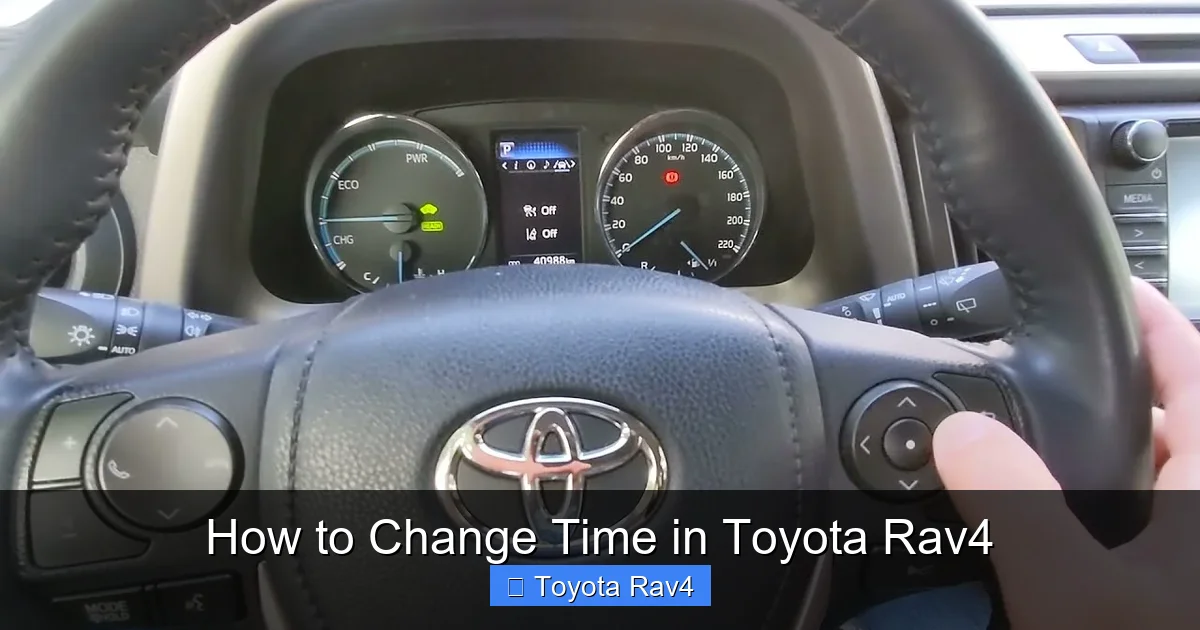
Certain XLE and Limited trims from this period include clock adjustment via steering wheel buttons. Press and hold the “INFO” or “DISP” button until the clock appears on the multi-information display (MID). Then use the scroll wheel or arrow keys to change hours/minutes. This method keeps your eyes on the road—ideal for quick adjustments during stops.
Dealing with Daylight Saving Time
Entune systems from this era rarely auto-adjust for DST. If you live in a region that observes it (like most of the U.S.), you’ll need to manually spring forward and fall back each year. Set a calendar reminder for the first Sunday in November and the second Sunday in March to avoid confusion.
One common frustration? The menu can be slow to respond, especially in cold weather. If your screen lags, try warming up the car first or restarting the infotainment system by holding the power/volume knob for 10 seconds. And remember: if you’ve installed an aftermarket head unit, these steps won’t apply—consult your new stereo’s manual instead.
Changing Time in Newer RAV4 Models (2019–2024) with Advanced Infotainment
The latest RAV4s are tech powerhouses—and thankfully, Toyota has streamlined time adjustment to match. Whether you have a 7-inch or 10.5-inch display, the process is intuitive and consistent across trims. Best of all, most models default to automatic time sync, reducing the need for manual changes.
Automatic Time Sync: The Default Setting
Starting in 2019, Toyota enabled GPS-based time synchronization by default on all RAV4s with connected services (even without a data plan). This means your clock updates automatically when you drive into a new time zone or when DST begins/ends. To verify it’s active:
1. Go to Menu > Settings > General > Clock.
2. Ensure “Automatic Date & Time” is toggled ON.
Bonus: If your RAV4 has Toyota Connected Services (included free for the first 2–3 years), it can also sync via cellular network when GPS signal is weak—like in underground parking or dense urban canyons.
Manual Override When Needed
Despite auto-sync, you may still need manual control—for example, if you’re traveling internationally (where GPS time zones differ) or if the system glitches. Here’s how:
1. Navigate to Menu > Settings > General > Clock.
2. Turn OFF “Automatic Date & Time.”
3. Tap “Set Time” and use the on-screen controls to input the correct hour and minute.
4. Confirm with “OK.”
Pro Tip: On hybrid models with digital instrument clusters, the clock appears in both the center screen and the driver display. Changing it in one place updates both automatically—no extra steps needed.
Using Voice Commands (2021+ Models)
If your RAV4 has Toyota’s latest voice recognition (look for a microphone icon on the steering wheel), try saying:
“Hey Toyota, set the clock to 3:45 PM.”
The system will confirm and adjust instantly. This is perfect for hands-free updates during short stops.
What If the Clock Won’t Change?
– Check for software updates: Toyota occasionally pushes infotainment updates that fix clock bugs. Visit a dealer or use the Toyota app to check.
– Reset the system: Hold the power/volume button for 15+ seconds to reboot the head unit.
– Verify GPS signal: Drive outdoors for a few minutes to allow satellite lock if auto-sync is stuck.
With these newer models, the emphasis is on convenience. But knowing how to manually intervene ensures you’re never stranded with a wrong time—even in edge cases.
Troubleshooting Common Clock Issues Across All RAV4 Models
Even with clear instructions, things can go sideways. Here are solutions to the most frequent clock problems RAV4 owners encounter:
Clock Resets After Battery Replacement
This is the #1 complaint—and it’s totally normal. When the 12V battery disconnects, volatile memory loses power. Solution: Simply re-set the time using the appropriate method for your model. To minimize future resets, consider a battery maintainer if your RAV4 sits unused for weeks.
Time Drifts Gradually Over Days
If your clock gains or loses minutes weekly, the internal quartz crystal may be aging (common in pre-2013 models). Unfortunately, this requires professional repair or radio replacement. Newer GPS-synced models won’t have this issue.
“Set Time” Option Is Grayed Out
This usually means “Automatic Time” is still enabled. Disable it first, then retry. On some Entune systems, you may need to be in Park with the parking brake engaged for safety reasons.
Clock Doesn’t Match Phone After CarPlay/Android Auto
Smartphone projection doesn’t control the car’s master clock—it only mirrors content. Always set the RAV4’s internal clock separately. However, enabling auto-sync ensures both stay aligned over time.
Daylight Saving Time Confusion
Unless you manually disable auto-DST (rare), your 2019+ RAV4 should handle it. Older models won’t. Mark your calendar or use a phone reminder to avoid being an hour early—or late!
When all else fails, consult your owner’s manual (search “clock” in the index) or visit a Toyota service center. Most clock issues are software-related and fixable without costly repairs.
Final Tips for Keeping Your RAV4 Clock Accurate
Changing the time once is easy—keeping it accurate long-term is the real win. Here are our top recommendations:
– Enable auto-sync if available: Let GPS do the heavy lifting.
– Check after battery work: Make clock resetting part of your post-maintenance routine.
– Use consistent time sources: Sync your RAV4 to your smartphone (which uses network time) rather than a wall clock.
– Teach family members: If others drive your RAV4, show them the process to avoid repeated requests.
– Update infotainment software: Newer updates often improve clock reliability.
A well-set clock is a small detail—but it reflects attention to the bigger picture of vehicle care. Your Toyota RAV4 is designed to make life easier; keeping its time accurate is one simple way to honor that promise.
Frequently Asked Questions
Why does my Toyota RAV4 clock keep resetting?
This usually happens after a battery disconnect or replacement. Older RAV4 models don’t store time in permanent memory, so they reset when power is lost. Simply re-set the clock using the manual method for your model year.
Can I change the time while driving?
On most newer RAV4s, you can adjust the clock via steering wheel controls or voice commands without stopping. However, for safety, Toyota disables menu navigation while the vehicle is in motion—so manual touchscreen changes require the car to be in Park.
Does my RAV4 automatically adjust for daylight saving time?
RAV4 models from 2019 onward with GPS auto-sync typically handle DST automatically. Older models (pre-2019) do not—you’ll need to manually adjust the clock twice a year.
What if my RAV4 has an aftermarket radio?
Aftermarket stereos have their own clock settings. Consult the manual that came with your replacement unit. The factory Toyota methods won’t apply, and you may need to adjust time through the new head unit’s menu system.
How do I turn off automatic time sync on a 2022 RAV4?
Go to Menu > Settings > General > Clock, then toggle OFF “Automatic Date & Time.” This allows manual adjustment. Remember to turn it back on later if you want GPS-based updates.
Will changing the clock affect my navigation or safety systems?
No—adjusting the clock only changes the displayed time. It doesn’t impact GPS accuracy, collision warnings, or other safety features. However, an incorrect clock may cause minor discrepancies in arrival estimates or logged event timestamps.