
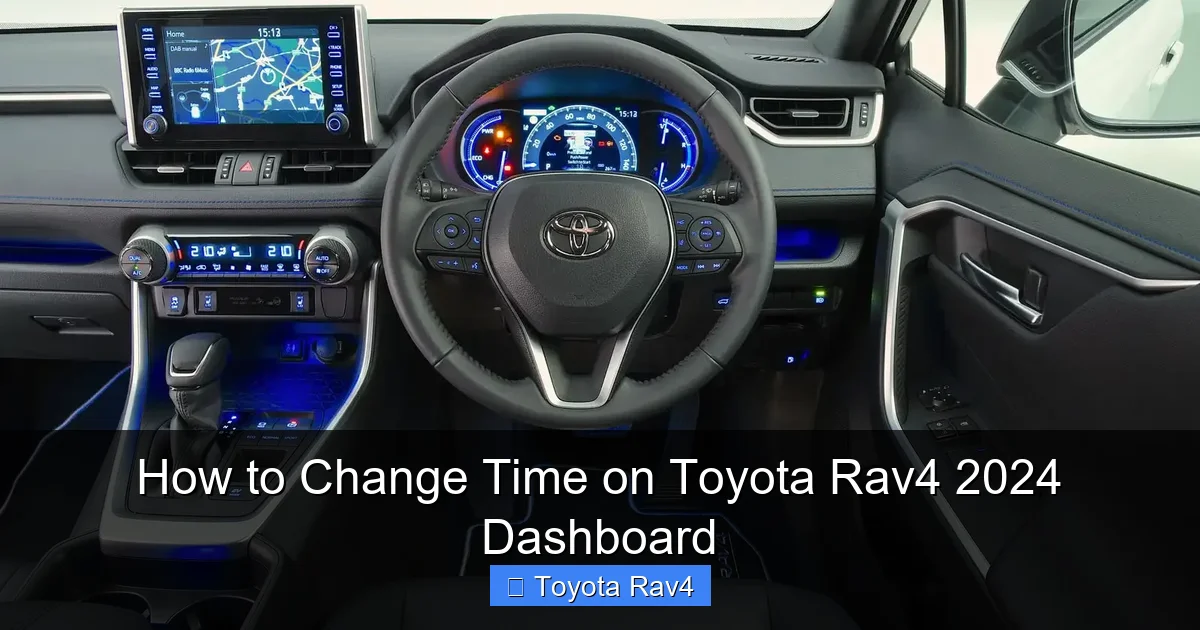
Changing the time on your Toyota RAV4 2024 dashboard is quick and easy, whether you’re adjusting for daylight saving or syncing with your phone. This guide walks you through every method—from the touchscreen to voice commands—so you’ll never be late again.
If you’ve just driven off the lot in your brand-new 2024 Toyota RAV4—or maybe you’ve had it for a few months—you might have noticed something small but surprisingly annoying: the clock doesn’t match your phone. Maybe it’s off by a few minutes, or worse, it hasn’t adjusted for daylight saving time. Don’t worry—you’re not alone. Many new RAV4 owners find themselves staring at the dashboard, wondering how to change time on Toyota RAV4 2024 dashboard without fumbling through confusing menus.
The good news? It’s easier than you think. Toyota has designed the 2024 RAV4 with user-friendly tech that makes everyday tasks like setting the clock straightforward—once you know where to look. Whether you’re a tech-savvy driver or someone who prefers simplicity, this guide will walk you through every possible method to get your dashboard clock perfectly synced. From using the touchscreen to leveraging voice commands or even syncing with your smartphone, we’ll cover it all. By the end, you’ll be able to adjust the time in under a minute—and never miss an appointment again.
Key Takeaways
- Multiple time-setting options: The 2024 RAV4 offers several ways to adjust the clock, including the multimedia screen, steering wheel controls, and voice commands.
- Automatic time sync via smartphone: When connected to Apple CarPlay or Android Auto, your phone’s time can automatically update the dashboard clock.
- Manual adjustment is simple: Even without a phone, you can manually set the time in just a few taps using the vehicle’s infotainment system.
- Daylight saving time made easy: No need to remember to adjust twice a year—your RAV4 can auto-adjust if enabled in settings.
- Backup method with physical buttons: If the screen freezes, older models may allow time changes via steering wheel controls—check your owner’s manual.
- Always verify after changes: Double-check that the new time displays correctly across all screens, including the instrument cluster and head-up display (if equipped).
- Keep your software updated: Toyota regularly releases updates that improve system stability and add new features—including better time management tools.
📑 Table of Contents
- Why Accurate Time Matters in Your RAV4
- Understanding the 2024 RAV4 Dashboard Layout
- Method 1: Changing Time via the Multimedia Touchscreen
- Method 2: Syncing Time Automatically with Your Smartphone
- Method 3: Using Voice Commands (If Equipped)
- Method 4: Manual Adjustment via Steering Wheel Controls (Backup Option)
- Troubleshooting Common Time-Setting Problems
- Maintaining Accurate Time: Best Practices
- Conclusion
Why Accurate Time Matters in Your RAV4
You might think, “It’s just a clock—how important can it be?” But accurate timekeeping in your vehicle goes beyond punctuality. Modern cars like the 2024 RAV4 rely on precise timing for everything from navigation estimates to scheduled maintenance reminders. If your clock is off, your estimated arrival time (ETA) on Google Maps or Waze could be wrong, throwing off your entire schedule. Worse, if you use features like remote start or scheduled climate control, incorrect timing could mean your car isn’t ready when you need it.
Plus, let’s be honest—there’s something satisfying about having all your devices in sync. When your phone, watch, and car all show the same time, it feels like you’re in control. And with the RAV4’s advanced tech suite, including a digital instrument cluster and optional head-up display, the clock appears in multiple places. Keeping them all aligned ensures a seamless, professional driving experience.
The Role of Time in Connected Features
The 2024 RAV4 isn’t just a car—it’s a connected hub. With Toyota’s latest multimedia system, your vehicle communicates with your smartphone, cloud services, and even smart home devices. Many of these integrations depend on accurate time data. For example, if you’ve set up a routine where your RAV4 turns on the heater at 7:00 AM every weekday, a misaligned clock could delay that by 15 minutes—leaving you shivering in the cold.
Similarly, if you use Toyota’s Safety Connect or Service Connect features, timestamps are used to log events like emergency calls or maintenance alerts. An incorrect clock could confuse service technicians or delay responses in critical situations. Even something as simple as reviewing your trip history in the app requires accurate time stamps to make sense.
Daylight Saving Time: The Silent Time Thief
Every spring and fall, we “spring forward” or “fall back”—and every year, millions of drivers forget to update their car clocks. The 2024 RAV4 helps solve this problem with automatic daylight saving adjustments, but only if you enable them. Without this feature turned on, you’ll wake up one morning to find your dashboard is an hour behind (or ahead), and your morning commute is suddenly off-schedule.
This is especially frustrating if you rely on your car’s clock to time your departure. Imagine leaving home at what you think is 7:30 AM, only to realize it’s actually 6:30 AM—and you’ve wasted an hour waiting at the office. Or worse, you leave at 7:30 AM thinking it’s correct, but it’s really 8:30 AM, and you’re late for an important meeting. Accurate timekeeping isn’t just convenient—it’s essential for daily life.
Understanding the 2024 RAV4 Dashboard Layout
Visual guide about How to Change Time on Toyota Rav4 2024 Dashboard
Image source: s1.cdn.autoevolution.com
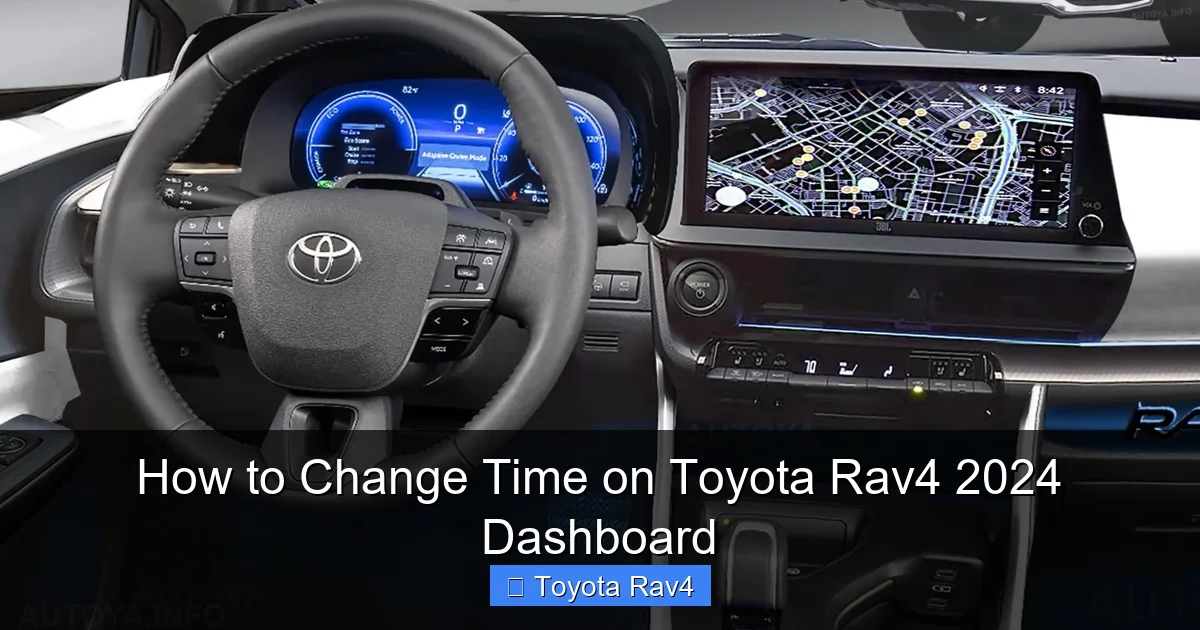
Before diving into the steps, it helps to understand where the clock appears in your RAV4. The 2024 model features a modern, driver-focused cockpit with multiple display zones. Depending on your trim level (LE, XLE, XLE Premium, Limited, or Adventure), you may have a 7-inch or 9-inch touchscreen, a 4.2-inch or 7-inch digital instrument cluster, and even a head-up display (HUD) on higher trims.
The primary clock is usually shown in the top-right corner of the multimedia screen. However, it also appears in the instrument cluster directly behind the steering wheel and, if equipped, in the HUD projected onto the windshield. This means that when you change the time, it should update across all three displays—but only if the system is working correctly.
Locating the Clock on Different Screens
On the multimedia screen, the clock is typically visible at all times, even when navigating or playing music. It’s small but legible, usually in white or light gray text against a dark background. In the instrument cluster, the clock appears in the center or upper section, often alongside fuel level, speed, and trip information. The HUD mirrors this layout, projecting a simplified version of the cluster info onto the windshield.
If you can’t see the clock, it might be because a notification or full-screen app is covering it. Try pressing the “Home” button on the touchscreen or using the steering wheel controls to return to the main menu. Once you’re back to the default view, the clock should reappear.
Trim-Level Differences to Note
Not all RAV4s are created equal when it comes to tech. The base LE trim comes with a 7-inch touchscreen and a basic 4.2-inch instrument cluster, while the Limited and Adventure trims feature a larger 9-inch screen and a high-resolution 7-inch digital gauge cluster. The higher trims also include wireless Apple CarPlay and Android Auto, which can affect how time syncing works.
Additionally, only the top trims offer the head-up display, so if you don’t see a clock on your windshield, it’s likely because your model doesn’t include that feature. Don’t worry—you can still change the time using the same methods; it just won’t appear in the HUD.
Method 1: Changing Time via the Multimedia Touchscreen
The most common and intuitive way to change time on Toyota RAV4 2024 dashboard is through the touchscreen. This method works on all trims and doesn’t require a smartphone connection. Here’s how to do it step by step.
Step-by-Step Guide
1. **Turn on the vehicle** – Make sure the ignition is on (you don’t need to drive; accessory mode is fine).
2. **Tap the “Menu” or “Settings” icon** – This is usually a gear-shaped button on the home screen or in the top-right corner.
3. **Select “Vehicle Settings”** – Scroll down and tap this option.
4. **Choose “Clock”** – You’ll see options like “Clock Adjustment” or “Time Settings.”
5. **Adjust the time** – Use the on-screen arrows or +/- buttons to set the correct hour and minute.
6. **Confirm your selection** – Tap “OK” or “Set” to save the changes.
7. **Verify the update** – Check that the new time appears on the dashboard and instrument cluster.
It’s that simple! The entire process takes less than 30 seconds once you know where to go.
Tips for a Smooth Experience
– If the screen is unresponsive, try restarting the system by turning the car off and on again.
– Use the “12/24 Hour” toggle if you prefer military time—this is usually found in the same clock menu.
– Avoid making changes while driving. Pull over safely if needed, as distracted driving is dangerous.
Common Issues and Fixes
Sometimes, the time won’t update even after following the steps. This could be due to a software glitch or a sync conflict with your phone. Try disconnecting your smartphone from Bluetooth and USB, then repeat the process. If that doesn’t work, check for a system update in the “Software Update” section of the settings menu.
Another issue is the clock reverting after a few minutes. This often happens when the car tries to auto-sync with a phone that has a different time zone. Disable automatic time sync (we’ll cover this next) and manually set the time again.
Method 2: Syncing Time Automatically with Your Smartphone
For many drivers, the easiest way to keep the clock accurate is to let the RAV4 sync with their phone. When connected via Apple CarPlay or Android Auto, the vehicle can automatically adopt the time from your device—including daylight saving adjustments.
How Auto-Sync Works
When your phone is connected, the RAV4 checks its time zone and current time. If the “Automatic Time Adjustment” feature is enabled, the car will update its clock to match your phone. This happens seamlessly in the background, so you don’t have to lift a finger.
This feature is especially useful for frequent travelers. If you fly from New York to Los Angeles, your phone will update to the new time zone, and your RAV4 will follow suit—no manual adjustment needed.
Enabling Automatic Time Sync
1. Connect your phone via USB or wirelessly (if supported).
2. Open the multimedia screen and go to **Settings > Vehicle Settings > Clock**.
3. Toggle on **“Automatic Time Adjustment”** or **“Sync with Phone.”**
4. Ensure your phone’s time zone is set correctly in its settings.
Once enabled, the RAV4 will update the clock whenever your phone connects. You can still manually override it if needed, but for most users, auto-sync is the best option.
Limitations and Considerations
Auto-sync only works when your phone is connected. If you drive without your phone, the clock won’t update. Also, if your phone’s time is wrong (e.g., you’re using a custom time zone or have disabled automatic updates), the car will inherit that error.
Additionally, some older phones or aftermarket cases may interfere with the connection. If syncing fails, try a different cable or remove the case temporarily.
Method 3: Using Voice Commands (If Equipped)
The 2024 RAV4 supports voice commands through Toyota’s built-in voice assistant or via Apple Siri and Google Assistant when connected. While you can’t directly say “Set the time to 3:45 PM,” you can use voice commands to navigate to the clock settings quickly.
How to Use Voice Commands
1. Press the voice command button on your steering wheel (usually marked with a microphone icon).
2. Say, “Go to clock settings” or “Open time adjustment.”
3. The system will guide you through the menu using voice prompts.
4. Confirm your time change when prompted.
This method is great for hands-free operation, especially if you’re driving and need to adjust the time quickly. However, it requires clear speech and a stable connection. Background noise or strong accents may cause misinterpretation.
Compatibility Notes
Voice navigation works best with the latest Toyota multimedia software. If your system is outdated, the voice assistant may not recognize clock-related commands. Check for updates in the settings menu to ensure full functionality.
Also, note that voice commands won’t work if your phone isn’t connected—unless you’re using Toyota’s native assistant, which has limited capabilities compared to Siri or Google Assistant.
Method 4: Manual Adjustment via Steering Wheel Controls (Backup Option)
In rare cases—such as a frozen touchscreen or software crash—you may need to change the time without using the display. While the 2024 RAV4 doesn’t have dedicated physical clock buttons, you can sometimes navigate the menu using the steering wheel controls.
Steps to Try
1. Use the arrow buttons on the left side of the steering wheel to scroll through the instrument cluster menu.
2. Look for a “Settings” or “System” option.
3. Navigate to “Clock” or “Time.”
4. Use the “OK” or “Enter” button to adjust the time.
This method is less intuitive and may not be available on all trims. If you can’t find the option, consult your owner’s manual or visit a Toyota dealer for assistance.
When to Use This Method
Only rely on steering wheel controls as a last resort. The touchscreen is faster and more reliable. However, if your display is unresponsive due to a glitch, this backup method could save you a trip to the service center.
Troubleshooting Common Time-Setting Problems
Even with clear instructions, issues can arise. Here are the most common problems and how to fix them.
Clock Reverts After Restart
If the time changes back after turning the car off and on, it’s likely due to auto-sync overriding your manual setting. Disable automatic time adjustment in the clock menu, then set the time manually again.
Time Zone Mismatch
If your clock shows the wrong time zone, check your phone’s location settings. The RAV4 uses GPS and network data to determine time zones, but it can get confused if your phone is in airplane mode or has location services disabled.
Display Not Updating
If the clock changes on the touchscreen but not in the instrument cluster, try restarting the vehicle. Sometimes, the two systems sync independently, and a reboot forces them to align.
Software Glitches
Occasionally, the multimedia system may freeze or behave erratically. A soft reset—turning the car off, waiting 30 seconds, and restarting—often resolves this. For persistent issues, visit a Toyota service center for a software update.
Maintaining Accurate Time: Best Practices
To avoid future headaches, follow these tips:
– **Enable auto-sync** if you always drive with your phone.
– **Update your software** regularly through Toyota’s website or dealership.
– **Check the clock monthly** to catch drift early.
– **Use the same time zone** on all devices.
– **Disable auto-sync** if you frequently drive without your phone.
By staying proactive, you’ll ensure your RAV4’s clock stays accurate year-round.
Conclusion
Changing the time on your Toyota RAV4 2024 dashboard doesn’t have to be a mystery. With multiple methods—touchscreen, smartphone sync, voice commands, and even steering wheel navigation—you have plenty of options to keep your clock accurate. Whether you’re adjusting for daylight saving or just syncing with your phone, the process is quick, simple, and designed with the modern driver in mind.
Remember, accurate timekeeping isn’t just about convenience—it’s about safety, efficiency, and peace of mind. By following this guide, you’ll master the clock settings in no time and enjoy a smoother, more connected driving experience. So next time you glance at your dashboard, you’ll know exactly how to make it right.
Frequently Asked Questions
Can I change the time on my 2024 RAV4 without a smartphone?
Yes, you can manually adjust the time using the multimedia touchscreen. Go to Settings > Vehicle Settings > Clock and set the time directly. No phone required.
Why does my RAV4 clock keep changing back after I set it?
This usually happens when “Automatic Time Adjustment” is enabled and your phone has a different time. Disable auto-sync in the clock settings and set the time manually to fix it.
Does the 2024 RAV4 automatically adjust for daylight saving time?
Yes, if automatic time sync is turned on and your phone updates correctly, the RAV4 will adjust for daylight saving time automatically.
Can I change the time using voice commands?
You can use voice commands to navigate to the clock settings, but you’ll still need to confirm the change manually. Full voice control isn’t supported yet.
What if my touchscreen is frozen and I can’t access the menu?
Try using the steering wheel controls to navigate the instrument cluster menu. If that doesn’t work, restart the vehicle or visit a Toyota service center.
Will updating the software fix clock issues?
Yes, software updates often include bug fixes for time syncing and display problems. Check for updates in the Settings menu under “Software Update.”