
Resetting your Toyota RAV4 display can solve common issues like frozen screens, incorrect settings, or connectivity problems. This guide walks you through simple, safe methods for every model year, ensuring your infotainment system runs smoothly again.
If you’ve ever been driving your Toyota RAV4 and suddenly noticed the touchscreen freezing, the audio cutting out, or the navigation system acting up, you’re not alone. These frustrating glitches are more common than you might think—especially as infotainment systems grow more complex. The good news? Most of these issues can be fixed with a simple reset of your RAV4’s display system. Whether you’re dealing with a frozen screen, Bluetooth pairing problems, or just want to refresh the system after a software update, knowing how to reset your Toyota RAV4 display is a valuable skill every owner should have.
Resetting the display isn’t just about fixing problems—it’s also about maintaining optimal performance. Over time, the system accumulates temporary data, cached files, and minor software conflicts that can slow things down or cause unexpected behavior. A reset clears these digital cobwebs, giving your system a fresh start. And the best part? It’s usually quick, easy, and doesn’t require any special tools or technical expertise. In this comprehensive guide, we’ll walk you through every method—from soft resets to full factory restores—tailored to your specific RAV4 model year. Whether you drive a 2015 RAV4 with Entune 2.0 or a 2023 model with the latest Toyota Audio Multimedia system, we’ve got you covered.
Key Takeaways
- Soft resets are safe and effective for minor glitches: A quick power cycle can resolve temporary software hiccups without losing personal settings.
- Hard resets restore factory defaults: Useful for persistent issues, but will erase saved radio stations, Bluetooth pairings, and navigation favorites.
- Model year matters: Older RAV4s (2013–2018) use different systems than newer models (2019–2024) with Entune 3.0 or Toyota Audio Multimedia.
- Check the fuse first: A blown fuse can mimic display failure—always inspect the fuse box before resetting.
- Use the steering wheel or touchscreen controls: Most resets can be initiated using built-in buttons or menu options.
- Keep your vehicle running during the reset: Avoid draining the battery by keeping the engine on or using accessory mode.
- Update software regularly: Post-reset, check for system updates to prevent future issues.
📑 Table of Contents
- Why You Might Need to Reset Your Toyota RAV4 Display
- Understanding Your RAV4’s Display System
- How to Perform a Soft Reset on Your Toyota RAV4
- How to Perform a Hard Reset (Factory Reset) on Your Toyota RAV4
- Troubleshooting Common Reset Issues
- Preventing Future Display Problems
- When to Visit a Toyota Service Center
- Conclusion
Why You Might Need to Reset Your Toyota RAV4 Display
There are several common scenarios where resetting your RAV4’s display becomes necessary. Understanding these can help you identify when a reset is the right solution—and when it might be time to visit a dealership.
One of the most frequent reasons is a frozen or unresponsive touchscreen. You tap the screen to change the radio station or open the climate controls, but nothing happens. The display might show a static image, flicker, or go completely black. This often happens after a software update, a sudden power loss, or prolonged use without a reboot. A soft reset usually brings it back to life.
Another common issue is Bluetooth connectivity problems. Your phone pairs successfully one day, but the next time you get in the car, it won’t connect—or it connects but won’t play audio. Sometimes, the system forgets paired devices altogether. Resetting the display can reinitialize the Bluetooth module and restore seamless pairing.
Navigation errors are also a frequent complaint. The GPS might show your location incorrectly, fail to calculate routes, or crash when searching for destinations. This can stem from corrupted map data or software bugs. A reset clears temporary navigation files and often resolves these glitches.
Additionally, you might want to reset the display before selling your RAV4. This ensures that your personal data—like saved addresses, call history, and music playlists—are removed from the system. It’s a smart privacy step that protects your information and gives the new owner a clean slate.
Finally, after installing a software update—either over-the-air or via USB—some users experience minor bugs or interface inconsistencies. A reset helps the system fully integrate the new software and operate smoothly.
Understanding Your RAV4’s Display System

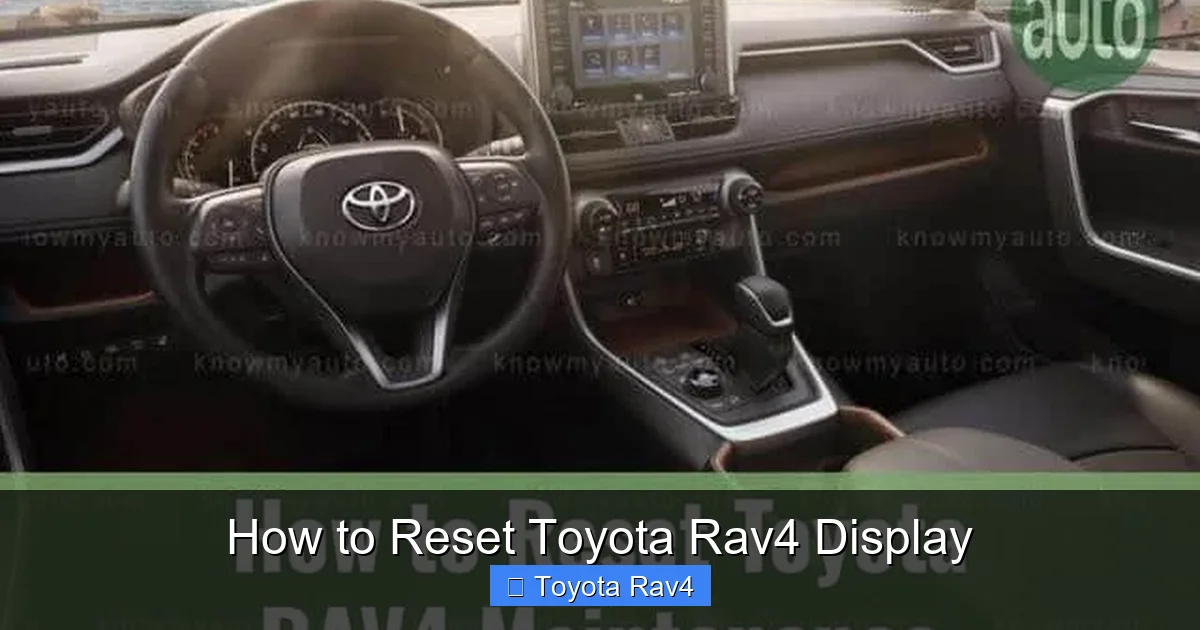
Visual guide about How to Reset Toyota Rav4 Display
Image source: knowmyauto.com
Before diving into reset methods, it’s important to understand the different infotainment systems used in Toyota RAV4 models over the years. The reset process varies depending on which system your vehicle has.
Entune 2.0 (2013–2018 Models)
The Entune 2.0 system was standard in RAV4s from 2013 to 2018. It features a 6.1-inch or 7-inch touchscreen, depending on the trim level. This system supports Bluetooth, USB connectivity, voice commands, and basic navigation (on higher trims). It’s relatively simple compared to newer systems but can still experience glitches.
One key characteristic of Entune 2.0 is that it doesn’t have a built-in reset button. Instead, resets are performed by cycling power or using specific button combinations. The system also lacks over-the-air updates, so software improvements require a visit to the dealership or a USB update.
Entune 3.0 (2019–2021 Models)
Introduced in 2019, Entune 3.0 brought significant improvements, including a faster processor, better graphics, and support for Apple CarPlay and Android Auto. The screen size increased to 8 inches on most trims, and the interface became more intuitive.
Entune 3.0 allows for both soft and hard resets through the settings menu. It also supports remote software updates, meaning Toyota can push fixes directly to your vehicle. However, if an update causes issues, a reset may still be needed to stabilize the system.
Toyota Audio Multimedia (2022–2024 Models)
The latest RAV4 models (2022 and newer) come equipped with the Toyota Audio Multimedia system. This is a major upgrade, featuring a 9-inch or 10.5-inch high-resolution touchscreen, wireless Apple CarPlay and Android Auto, cloud-based navigation, and enhanced voice recognition.
This system is more advanced and integrates deeply with Toyota’s connected services. It includes a dedicated reset option in the settings menu and supports automatic updates. However, due to its complexity, it’s also more prone to software-related glitches—making resets a common troubleshooting step.
How to Perform a Soft Reset on Your Toyota RAV4
A soft reset—also known as a power cycle—is the safest and most recommended first step when your display acts up. It’s non-destructive, meaning it won’t erase your personal settings, and it often resolves temporary software issues.
Step-by-Step Soft Reset Instructions
1. **Turn off the vehicle.** Make sure the engine is completely off. This ensures a full power cut to the infotainment system.
2. **Open the driver’s side door.** This signals the vehicle to fully power down all electronic systems, including the display.
3. **Wait 2–3 minutes.** Give the system time to fully discharge. This allows capacitors to drain and the system to reset internally.
4. **Close the door and restart the vehicle.** Turn the ignition to “ON” or start the engine. The display should power up normally.
5. **Test the system.** Try using the touchscreen, adjusting the audio, or connecting your phone via Bluetooth to confirm the issue is resolved.
This method works for all RAV4 models, from 2013 to 2024. It’s especially effective for frozen screens, unresponsive controls, or minor software hiccups.
Alternative Soft Reset Method (Using the Power Button)
On some newer models (2019 and later), you can perform a soft reset without turning off the engine:
1. Press and hold the **power/volume knob** on the audio system for 10–15 seconds.
2. The screen will go black and restart automatically.
3. Once it reboots, test the functionality.
This method is quicker but may not be as thorough as a full power cycle. Use it for minor issues like audio lag or slow response.
Tips for a Successful Soft Reset
– Always keep the vehicle in park and apply the parking brake before starting.
– Avoid performing a reset while driving—safety first!
– If the issue persists after two soft resets, try a hard reset or check for software updates.
How to Perform a Hard Reset (Factory Reset) on Your Toyota RAV4
If a soft reset doesn’t solve the problem, a hard reset—also called a factory reset—may be necessary. This restores the system to its original factory settings, erasing all personal data. Use this method only when other fixes fail.
Hard Reset for Entune 2.0 (2013–2018)
1. Turn the ignition to “ON” (do not start the engine).
2. Press and hold the **“Setup”** button on the touchscreen.
3. While holding “Setup,” press and hold the **“Power/Volume”** knob for 10 seconds.
4. The screen will go black, then display a confirmation message.
5. Release both buttons and wait for the system to restart.
6. Follow the on-screen prompts to reconfigure settings.
Note: This method may vary slightly by trim. If it doesn’t work, consult your owner’s manual.
Hard Reset for Entune 3.0 and Toyota Audio Multimedia (2019–2024)
1. Turn on the vehicle and ensure the display is active.
2. Tap the **“Menu”** or **“Settings”** icon on the home screen.
3. Navigate to **“System”** > **“Reset”** or **“Factory Reset.”**
4. Confirm the action when prompted. You may need to enter a security code (usually “0000” or “1234”).
5. The system will restart and return to factory defaults.
After a hard reset, you’ll need to re-pair your phone, re-enter navigation favorites, and adjust audio settings.
What Gets Erased in a Hard Reset?
– Paired Bluetooth devices
– Saved radio stations
– Navigation history and favorites
– Custom audio settings (equalizer, balance, etc.)
– Phone call history and contacts (if synced)
– Wi-Fi passwords (if connected)
Always back up important data before performing a hard reset. Unfortunately, there’s no way to export this data from the RAV4 system, so manual re-entry is required.
Troubleshooting Common Reset Issues
Even with the right steps, you might run into problems during or after a reset. Here’s how to handle the most common issues.
Display Won’t Turn On After Reset
If the screen remains black after a reset, check the fuse. The infotainment system is powered by a fuse in the cabin fuse box (usually labeled “RADIO” or “AUDIO”). Locate the fuse box under the dashboard on the driver’s side, remove the cover, and inspect the fuse. If it’s blown, replace it with one of the same amperage (typically 10A or 15A).
If the fuse is fine, try disconnecting the negative terminal of the car battery for 10 minutes. This performs a deeper system reset and can resolve power-related issues.
System Reboots Repeatedly
A looping reboot usually indicates a software corruption or hardware failure. Try updating the system software via USB (download the latest version from Toyota’s website). If that doesn’t work, the internal memory or display module may be faulty—consult a Toyota service center.
Bluetooth Still Won’t Connect
After a reset, re-pair your phone carefully. Delete the RAV4 from your phone’s Bluetooth list and vice versa. Then, go to the RAV4’s Bluetooth menu, select “Add New Device,” and follow the pairing steps. Ensure your phone is discoverable and within range.
Navigation Not Working
If GPS issues persist, check for map updates. Older models require USB updates, while newer ones can download updates over Wi-Fi. Go to the navigation settings and look for “Update Maps” or “Check for Updates.”
Preventing Future Display Problems
Once your display is working smoothly, take steps to avoid future issues.
Keep Software Updated
Regular updates fix bugs, improve performance, and add new features. For 2019+ models, enable automatic updates in the settings menu. For older models, visit Toyota’s software update portal and download updates to a USB drive.
Avoid Extreme Temperatures
Leaving your RAV4 in direct sunlight or freezing conditions can damage the display. Use a sunshade in summer and consider a block heater in winter.
Clean the Screen Properly
Use a microfiber cloth and screen-safe cleaner. Avoid harsh chemicals or abrasive materials that can scratch the surface.
Don’t Overload the System
Running too many apps or connecting multiple devices at once can slow down the system. Disconnect unused devices and close background apps when possible.
When to Visit a Toyota Service Center
Most display issues can be resolved with a reset. However, if you experience any of the following, it’s time to see a professional:
– The screen is physically cracked or damaged
– The display shows distorted colors or lines
– The system fails to power on even after a battery disconnect
– You hear unusual noises from the audio system
– The reset process doesn’t complete or causes errors
Toyota service centers have diagnostic tools to identify hardware failures and can replace faulty components under warranty if applicable.
Conclusion
Resetting your Toyota RAV4 display is a simple yet powerful way to restore functionality and improve your driving experience. Whether you’re dealing with a frozen screen, Bluetooth issues, or post-update glitches, the right reset method can often solve the problem in minutes. Soft resets are safe and effective for everyday issues, while hard resets tackle more persistent problems—just remember they erase personal data.
By understanding your RAV4’s infotainment system and following the steps outlined in this guide, you can confidently troubleshoot display issues at home. Regular maintenance, software updates, and careful usage will help keep your system running smoothly for years to come. And when in doubt, don’t hesitate to reach out to your local Toyota dealer for professional support. Your RAV4’s display is the gateway to entertainment, navigation, and connectivity—keep it in top shape, and it will serve you well on every journey.
Frequently Asked Questions
How do I reset the display on a 2016 Toyota RAV4?
Turn off the vehicle, open the driver’s door, wait 3 minutes, then restart. For a hard reset, hold the “Setup” button and power knob simultaneously for 10 seconds.
Will resetting the display delete my saved radio stations?
A soft reset won’t delete anything. A hard reset will erase saved stations, Bluetooth pairings, and navigation favorites.
Can I reset the RAV4 display while driving?
No. Always perform resets when the vehicle is parked and the engine is off or in accessory mode for safety.
Why does my RAV4 screen keep freezing?
Freezing can result from software glitches, outdated firmware, or overheating. Try a soft reset first, then check for updates.
How often should I reset my Toyota RAV4 display?
Only reset when you notice performance issues. There’s no need for routine resets unless recommended after a software update.
What if the reset doesn’t fix the problem?
If issues persist, check the fuse, inspect for physical damage, or visit a Toyota service center for professional diagnosis.