
Changing the time on your 2025 Toyota RAV4 is simple, whether you use the touchscreen, physical buttons, or voice commands. This guide covers every method, including daylight saving adjustments and syncing with your smartphone, so you’ll never miss a meeting again.
Key Takeaways
- Multiple methods available: Use the multimedia touchscreen, steering wheel controls, or voice commands to adjust the time.
- Automatic time sync: Enable GPS or smartphone sync to keep your clock accurate without manual input.
- Daylight saving time handled easily: Toggle automatic DST adjustment in settings to avoid manual changes twice a year.
- Different trims, same process: Whether you have LE, XLE, Limited, or Hybrid, the steps are nearly identical.
- Backup battery ensures consistency: Your RAV4 retains time settings even when the car is off, thanks to an internal memory backup.
- Voice command shortcut: Say “Hey Toyota, set the time to 3:45 PM” for hands-free updates while driving.
- Troubleshooting tips included: If the clock won’t change, check fuse connections or reset the infotainment system.
📑 Table of Contents
- Why Keeping Your Toyota RAV4 2025 Clock Accurate Matters
- Understanding Your 2025 Toyota RAV4’s Display System
- Method 1: Changing Time via the Touchscreen Menu
- Method 2: Using Steering Wheel Controls
- Method 3: Voice Command (“Hey Toyota”)
- Method 4: Automatic Time Sync via GPS or Smartphone
- Troubleshooting Common Clock Issues
- Final Thoughts: Stay on Time, Every Time
Why Keeping Your Toyota RAV4 2025 Clock Accurate Matters
You’re running late for a meeting, and you glance at your dashboard—only to realize your 2025 Toyota RAV4’s clock is off by 20 minutes. Sound familiar? It’s a small detail, but an inaccurate clock can throw off your entire day. Whether you’re timing school pickups, tracking commute durations, or just staying punctual, having the correct time in your vehicle is more important than you might think.
The 2025 Toyota RAV4 comes equipped with advanced infotainment systems across all trims—from the base LE to the tech-packed Limited Hybrid. These systems are designed to make life easier, and that includes keeping your clock synced with real-world time. But unlike older models where you had to twist a knob or press tiny buttons, today’s RAV4 uses intuitive digital interfaces. The good news? Once you know how to navigate them, changing the time takes less than a minute.
In this guide, we’ll walk you through every possible way to change the time on your 2025 Toyota RAV4. Whether you prefer using the large central touchscreen, steering wheel controls, voice commands, or even your smartphone, we’ve got you covered. We’ll also explain how to set up automatic time synchronization so you never have to think about it again—and what to do if something goes wrong. By the end, you’ll be a pro at managing your RAV4’s clock settings like a seasoned Toyota owner.
Understanding Your 2025 Toyota RAV4’s Display System
Before diving into the steps, it helps to understand what kind of display your RAV4 has. The 2025 model year introduces subtle but meaningful upgrades over previous versions, especially in how information is presented and controlled.

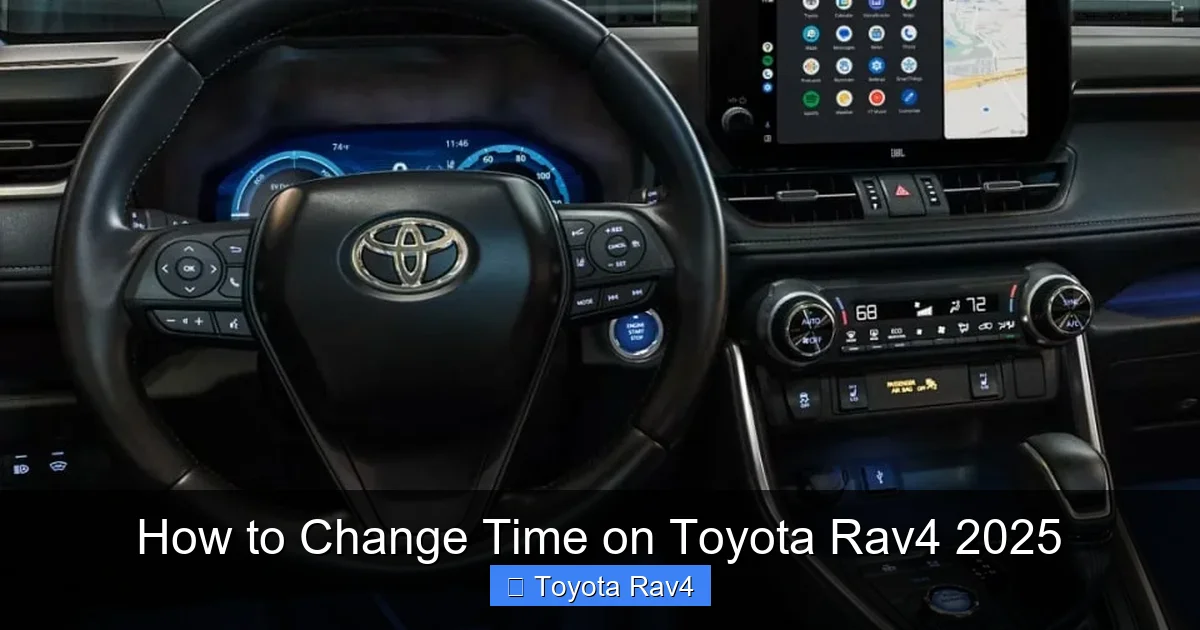
Visual guide about How to Change Time on Toyota Rav4 2025
Image source: burlappcar.com
Types of Displays in the 2025 RAV4
Depending on your trim level, your RAV4 may feature one of two main display setups:
- 7-inch touchscreen (LE and XLE trims): This standard display offers clear graphics and responsive touch controls. While smaller than the premium option, it still provides full access to clock settings via the menu system.
- 9-inch touchscreen (XLE Premium, Limited, and all Hybrid trims): The larger screen enhances visibility and includes additional customization options. It also supports split-screen views, making it easier to adjust settings while using navigation or audio apps.
Both displays run Toyota’s latest Entune 3.0 (or newer) infotainment software, which prioritizes user-friendly navigation. The clock is always visible in the top-right corner of the screen when the system is active, and it appears on the instrument cluster as well—especially in models with the digital gauge display (available on higher trims).
Steering Wheel Controls and Voice Integration
Many drivers don’t realize they can adjust the time without touching the center screen at all. The 2025 RAV4 includes multifunction steering wheel buttons that let you scroll through menus and confirm selections. Combined with Toyota’s “Hey Toyota” voice assistant (standard on most trims), you can literally change the time hands-free while driving—a huge safety plus.
Additionally, if your RAV4 is connected to Apple CarPlay or Android Auto, the system can pull time data directly from your phone. This means your car’s clock automatically matches your smartphone’s time, which is usually synced to network time servers. It’s a seamless experience—but only if you enable the right settings (more on that later).
Method 1: Changing Time via the Touchscreen Menu
This is the most straightforward method and works on every 2025 RAV4 trim. Here’s how to do it step by step.
Step-by-Step Touchscreen Instructions
- Turn on the ignition: You don’t need to start the engine—just press the power button once (or turn the key to “ON”) so the infotainment system boots up.
- Tap the “Menu” icon: Located in the bottom-left corner of the touchscreen, this looks like three horizontal lines. Tap it to open the main menu.
- Select “Settings”: Scroll down and tap the gear-shaped “Settings” option.
- Choose “Clock”: In the Settings menu, look for “Clock” or “Date & Time.” Tap it to enter clock settings.
- Disable “Automatic Time” (if enabled): If the toggle for “Automatic Time Adjustment” is on, turn it off. You must do this before manually setting the time.
- Set the time manually: Use the “+” and “–” buttons next to “Hour” and “Minute” to adjust to the correct time. Some models allow you to tap the time field directly and type it in using an on-screen keyboard.
- Confirm your selection: Tap “OK” or “Save” to apply the changes. The new time will appear instantly on both the touchscreen and instrument cluster.
Pro Tips for Touchscreen Users
- If you accidentally exit the menu, just repeat the steps—the system doesn’t save partial entries.
- On hybrid models, the clock may briefly flicker when switching between EV and gas modes—this is normal and doesn’t affect accuracy.
- For drivers who frequently travel across time zones, consider leaving “Automatic Time” enabled and relying on GPS sync (covered below).
Method 2: Using Steering Wheel Controls
Prefer not to reach for the screen while driving? The 2025 RAV4 lets you navigate menus using buttons on the left side of the steering wheel. This method is especially useful during long trips or heavy traffic.
How to Navigate with Steering Wheel Buttons
- Press the “Menu” button: This is usually labeled with a house or list icon. Hold it for 1–2 seconds to enter the main menu.
- Use the arrow keys to scroll: The up/down arrows let you highlight “Settings,” then “Clock.”
- Press the “OK” or center button: This selects the highlighted option.
- Adjust time using arrows: Once in the clock settings, use the left/right arrows to move between hour and minute fields, and up/down to change values.
- Confirm with “OK”: Press the center button again to save.
Note: Not all steering wheel configurations include full menu navigation. Base LE models may require you to use the touchscreen for initial setup, but once you’re in the clock menu, the buttons often work for adjustments.
Safety Reminder
While this method reduces distractions, always make time changes when stopped or at a red light—never while actively driving. Toyota’s system is designed for minimal interaction, but safety should always come first.
Method 3: Voice Command (“Hey Toyota”)
Toyota’s voice assistant, activated by saying “Hey Toyota,” is one of the most underused features in the 2025 RAV4. It can handle everything from navigation to climate control—and yes, setting the time.
Using Voice Commands to Set Time
Simply say:
“Hey Toyota, set the time to 4:30 PM.”
The system will confirm: “Setting time to 4:30 PM. Is that correct?” Respond with “Yes” to finalize.
Alternatively, try:
“Hey Toyota, what time is it?”
This displays the current time and offers an option to adjust it via voice.
Requirements for Voice Control
- Your RAV4 must have the “Hey Toyota” feature enabled (standard on XLE and above; optional on LE).
- A microphone must be unobstructed (usually located near the rearview mirror).
- Speak clearly and avoid background noise for best results.
Voice commands are ideal for quick corrections—like when you notice the clock drifted after a long parking session. It’s also perfect for passengers who want to help without touching controls.
Method 4: Automatic Time Sync via GPS or Smartphone
The easiest way to keep your RAV4’s clock accurate is to let it update itself. The 2025 model supports two automatic sync methods: GPS-based time and smartphone integration.
Enabling GPS Time Sync
- Go to Settings > Clock on the touchscreen.
- Toggle on “Automatic Time Adjustment”.
- Ensure “Use GPS Time” is selected (this is usually the default).
Once enabled, your RAV4 will pull the current time from GPS satellites whenever you drive. This works even without cellular service, making it reliable in remote areas.
Syncing with Your Smartphone
If you use Apple CarPlay or Android Auto:
- Connect your phone via USB or Bluetooth.
- Open the phone app on the RAV4 screen.
- Go to Settings > Clock and enable “Sync with Mobile Device”.
Your phone’s time (which is typically synced to network time servers) will override the car’s internal clock. This is especially helpful if you travel across time zones—your phone adjusts automatically, and so does your RAV4.
Daylight Saving Time Made Easy
Worried about forgetting to “spring forward” or “fall back”? In the same Clock settings menu, look for “Automatic Daylight Saving Time Adjustment” and toggle it on. Your RAV4 will handle the shift automatically based on your location.
Troubleshooting Common Clock Issues
Even with advanced tech, sometimes things go wrong. Here’s how to fix the most common clock problems in the 2025 RAV4.
Clock Won’t Change or Resets After Turning Off
This usually indicates a weak backup battery or loose connection. The RAV4 uses a small capacitor to retain clock settings when powered down. If it drains too quickly:
- Check the fuse box (located under the dashboard or hood)—specifically fuse #17 (infotainment system). Replace if blown.
- Disconnect the car battery for 10 minutes, then reconnect. This resets the system and often restores clock memory.
- If the issue persists, visit a Toyota dealer—there may be a software glitch requiring an update.
Time Drifts Gradually Over Days
Internal clocks can lose or gain seconds per day. If you notice consistent drift:
- Re-enable automatic time sync (GPS or phone).
- Ensure your region settings are correct in Settings > General > Region.
- Avoid using third-party chargers that may cause electrical interference.
Voice Command Doesn’t Work
If “Hey Toyota” ignores your time commands:
- Say the phrase slowly and clearly: “Hey… Toyota… set… the… time… to… 2… 15… PM.”
- Check microphone settings in Settings > Voice Recognition.
- Update your infotainment system via Toyota’s website or dealer—newer software improves voice accuracy.
Final Thoughts: Stay on Time, Every Time
The 2025 Toyota RAV4 makes it easier than ever to keep your clock accurate—whether you’re a tech enthusiast who loves voice commands or a traditionalist who prefers tapping buttons. With multiple methods to choose from, there’s no excuse for being late because of a wrong time display.
Remember: enabling automatic time sync is the smartest long-term solution. It saves you effort, reduces errors, and ensures your RAV4 always matches the real world. But if you ever need to make a manual adjustment, now you know exactly how—quickly, safely, and confidently.
So next time daylight saving hits or you return from a cross-country trip, don’t stress about resetting your clock. Your Toyota RAV4 has your back. Just follow one of the methods above, and you’ll be back on schedule in seconds.
Frequently Asked Questions
Can I change the time on my 2025 RAV4 without starting the engine?
Yes! You only need to turn the ignition to the “ON” position (press the power button once without pressing the brake). This powers the infotainment system so you can access clock settings.
Why does my RAV4 clock keep resetting to the wrong time?
This is often due to a weak backup power source or disabled automatic sync. Check your fuses and enable GPS or smartphone time synchronization in the Clock settings menu.
Does the 2025 RAV4 adjust for daylight saving time automatically?
Yes, if you enable “Automatic Daylight Saving Time Adjustment” in the Clock settings. The car uses your location to apply the correct shift in spring and fall.
Can I set the time using only voice commands?
Absolutely. Say “Hey Toyota, set the time to [your desired time]” and confirm when prompted. This works on all trims with the voice assistant feature.
Will disconnecting the battery reset my clock?
Temporarily, yes—but the RAV4 has a backup capacitor that usually retains settings for a few hours. If the clock resets completely, it may indicate a blown fuse or electrical issue.
Is there a difference in the process between hybrid and gas-only RAV4 models?
No. Both hybrid and conventional 2025 RAV4 models use the same infotainment system and clock adjustment methods. The steps are identical across all trims.