
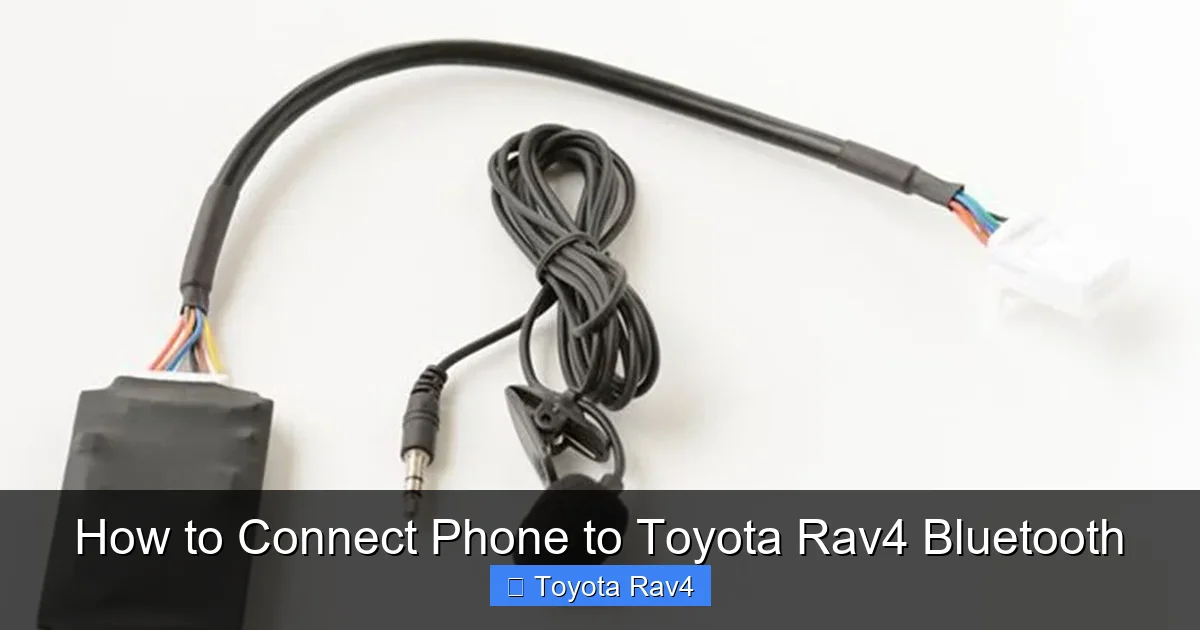
Connecting your phone to a Toyota RAV4 via Bluetooth is simple and enhances your driving experience. Whether you’re making hands-free calls, streaming music, or using voice commands, this guide walks you through every step—no tech expertise required.
Key Takeaways
- Bluetooth compatibility is standard in most RAV4 models from 2010 onward. Even older trims often support basic phone pairing for calls and audio.
- Ensure your phone’s Bluetooth is on and discoverable before starting. This allows the RAV4 system to detect and connect to your device.
- The pairing process typically takes less than two minutes. Follow the on-screen prompts carefully for a smooth connection.
- You can pair multiple phones, but only one can be active at a time. Switch between devices easily through the audio or phone menu.
- Keep your RAV4’s infotainment system updated for best performance. Software updates can fix bugs and improve Bluetooth reliability.
- If connection fails, try restarting both your phone and the car’s system. A quick reset often resolves temporary glitches.
- Use voice commands after pairing to safely control calls and music. Say “Call [contact name]” or “Play [song]” without touching your phone.
📑 Table of Contents
Why Bluetooth in Your Toyota RAV4 Matters
Imagine driving down the highway, your favorite playlist filling the cabin, or taking an important call without ever touching your phone. That’s the power of Bluetooth in your Toyota RAV4. It’s not just a convenience—it’s a safety feature. With Bluetooth, you keep your hands on the wheel and your eyes on the road, which is exactly what Toyota engineers had in mind when they designed the RAV4’s infotainment system.
Bluetooth technology has evolved significantly over the years, and Toyota has kept pace. From the early days of basic hands-free calling to today’s seamless music streaming and voice command integration, the RAV4’s Bluetooth system is built to make your drive smarter and safer. Whether you’re commuting to work, running errands, or heading out on a road trip, having your phone connected means you can stay in touch, entertained, and informed—without distraction.
What You’ll Need Before You Start
Before diving into the pairing process, let’s make sure you have everything you need. First and foremost, you’ll need your smartphone—whether it’s an iPhone, Android, or another Bluetooth-enabled device. Most modern phones support Bluetooth 4.0 or higher, which works perfectly with the RAV4’s system. You’ll also need your vehicle’s key fob or access to the ignition, as the car must be in accessory mode (or running) for the infotainment system to power on.
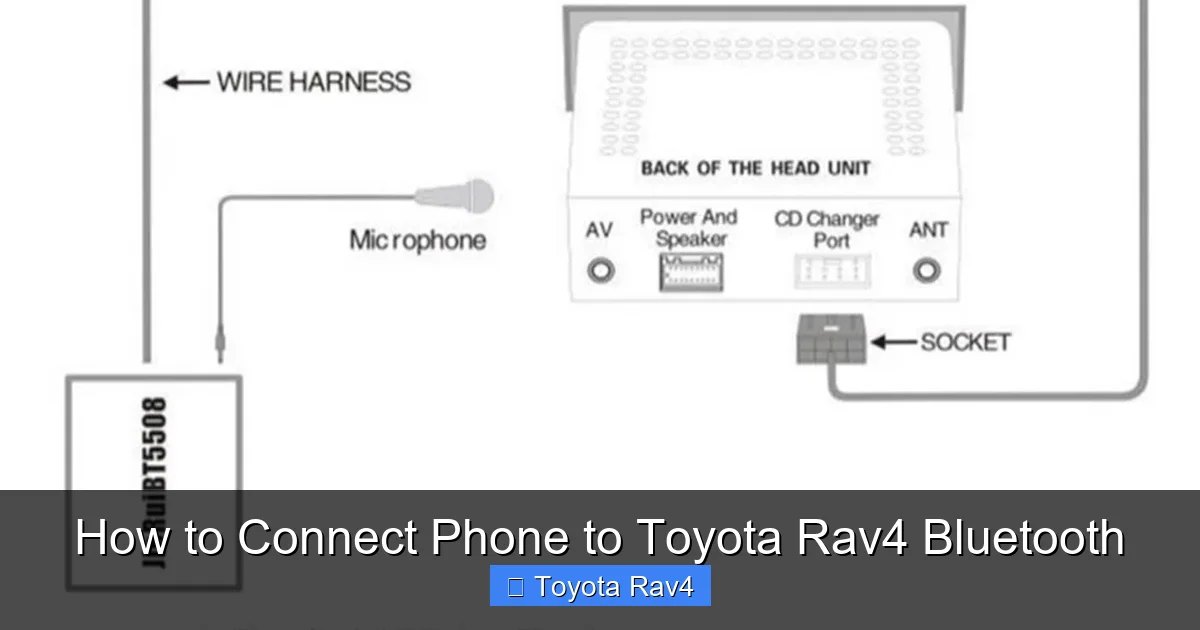
Visual guide about How to Connect Phone to Toyota Rav4 Bluetooth
Image source: images.nexusapp.co
Check Your RAV4 Model and Year
Not all RAV4 models are created equal when it comes to Bluetooth. While most RAV4s from 2010 onward include Bluetooth connectivity, the exact features can vary. For example, older models (2010–2015) may only support hands-free calling, while newer trims (2016 and later) often include audio streaming, contact syncing, and voice recognition. If you’re unsure, check your owner’s manual or look for a “Phone” or “Bluetooth” button on your steering wheel or dashboard.
Ensure Your Phone Is Ready
Your phone should be charged and have Bluetooth enabled. On an iPhone, go to Settings > Bluetooth and toggle it on. On Android, swipe down from the top of the screen and tap the Bluetooth icon, or go to Settings > Connected devices > Bluetooth. Make sure your phone is set to “discoverable” or “visible to other devices” during the pairing process. This allows the RAV4 to detect it.
Update Your Software
For the best experience, ensure both your phone and your RAV4’s infotainment system are running the latest software. On your phone, check for updates in the settings menu. For your RAV4, visit a Toyota dealership or check Toyota’s official website for system updates. Updated software can fix bugs, improve connection stability, and add new features.
Step-by-Step Guide to Connecting Your Phone
Now that you’re prepared, let’s walk through the actual pairing process. Don’t worry—it’s easier than it sounds. The steps are nearly identical across RAV4 models, though the menu layout might look slightly different depending on your year and trim. We’ll cover the most common scenarios, so you can follow along no matter what RAV4 you drive.
Step 1: Turn On Your RAV4’s Infotainment System
Start by turning on your vehicle. You don’t need to drive—just press the “Start” button without pressing the brake pedal to enter accessory mode. This powers up the display screen and audio system. Once the screen lights up, you’re ready to begin.
Step 2: Access the Bluetooth Menu
On most RAV4 models, you’ll find the Bluetooth settings under the “Phone” or “Audio” menu. Look for a button labeled “Phone,” “Bluetooth,” or a phone icon on the touchscreen. Tap it. If you don’t see it right away, check the main menu or swipe through the home screens. Some newer models use Toyota’s Entune or Audio Multimedia system, which organizes settings under “Setup” or “Settings.”
Step 3: Select “Pair Device” or “Add New Device”
Once you’re in the Bluetooth or Phone menu, look for an option like “Pair Device,” “Add New Device,” or “Register Device.” Tap it. The system will begin searching for nearby Bluetooth devices. This may take 10–20 seconds, so be patient.
Step 4: Enable Bluetooth on Your Phone
While the RAV4 is searching, make sure your phone’s Bluetooth is on and discoverable. On an iPhone, you’ll see your device name (like “John’s iPhone”) appear in the Bluetooth settings. On Android, it might show as “Galaxy S21” or similar. Keep your phone close to the dashboard for a stronger signal.
Step 5: Select Your Phone from the List
When the RAV4 detects your phone, it will appear on the screen with a name or model number. Tap on it to select it. You may see a prompt asking if you want to pair the device—confirm by tapping “Yes” or “Pair.”
Step 6: Enter the Pairing Code
In most cases, a four-digit code (like “0000” or “1234”) will appear on both your phone and the RAV4 screen. Verify that the codes match, then confirm on both devices. This ensures a secure connection. If the codes don’t match, cancel and try again.
Step 7: Confirm Connection and Test
Once paired, your phone should show “Connected” or “Paired” in the Bluetooth settings. The RAV4 screen may also display a confirmation message. To test the connection, try making a call or playing music. If everything works, you’re all set!
Troubleshooting Common Connection Issues
Even with the best preparation, sometimes things don’t go as planned. Don’t panic—Bluetooth pairing issues are common and usually easy to fix. Here are some of the most frequent problems and how to solve them.
Phone Not Showing Up in the RAV4 Menu
If your phone doesn’t appear in the list of available devices, first check that Bluetooth is on and discoverable. Also, make sure your phone isn’t already connected to another device (like a smartwatch or headphones), as this can interfere. Try turning Bluetooth off and on again, or restart your phone entirely.
Pairing Code Doesn’t Match
If the codes on your phone and the RAV4 screen don’t match, cancel the pairing and start over. Sometimes the system generates a new code each time. Also, ensure no one else is trying to pair a device at the same time—this can cause confusion.
Connection Drops Frequently
If your phone connects but keeps disconnecting, it could be due to interference or a weak signal. Keep your phone in the center console or cup holder, not in your pocket or back seat. Also, check for software updates on both your phone and the RAV4. Outdated firmware is a common cause of instability.
Audio Not Playing Through Car Speakers
If you’re connected but music won’t play, make sure the audio source is set to “Bluetooth” or “Phone.” On the RAV4 screen, tap the “Source” button and select “Bluetooth Audio.” Also, check your phone’s volume—sometimes it’s muted or too low.
Hands-Free Calling Not Working
If you can’t make calls, ensure your phone has granted the RAV4 access to contacts and call history. On iPhone, go to Settings > Bluetooth > [Your RAV4] > Info and enable “Sync Contacts” and “Call Audio.” On Android, check app permissions for the Bluetooth service.
Advanced Features and Tips for Better Use
Once your phone is connected, you can unlock even more features to enhance your driving experience. The RAV4’s Bluetooth system isn’t just for calls and music—it’s a smart assistant that can help you stay organized and safe.
Use Voice Commands for Hands-Free Control
Most RAV4 models support voice commands through the “Talk” button on the steering wheel. Press and hold it, then say commands like “Call Mom,” “Play jazz music,” or “Navigate to the nearest gas station.” This keeps your hands on the wheel and your focus on driving.
Sync Your Contacts for Easy Dialing
When you pair your phone, the RAV4 can sync your contact list. This lets you dial by name instead of number. To enable this, confirm the contact sync prompt during pairing, or go to Phone > Settings > Contact Sync after connecting.
Stream Music from Any App
Once connected, you can stream music from Spotify, Apple Music, YouTube, or any other audio app. Just open the app on your phone and start playing—the sound will automatically route through the car speakers. Use the RAV4’s touchscreen or steering wheel controls to skip tracks or adjust volume.
Pair Multiple Phones
Got a family car? You can pair up to five phones to your RAV4. To switch between them, go to Phone > Select Device and choose the one you want to use. Only one phone can be active at a time, but the system remembers all paired devices.
Use Do Not Disturb While Driving
To minimize distractions, enable “Do Not Disturb While Driving” on your iPhone or “Driving Mode” on Android. These features silence notifications and auto-reply to messages, so you can focus on the road.
Maintaining Your Bluetooth Connection
A strong, reliable Bluetooth connection doesn’t happen by accident. With a little maintenance, you can keep your phone and RAV4 working together smoothly for years.
Keep Devices Updated
Regularly check for software updates on your phone and your RAV4. Toyota releases updates to improve performance, fix bugs, and add new features. Visit a dealership or use Toyota’s remote update service if available.
Clear Old Pairings
If you’ve sold your old phone or upgraded, remove it from the RAV4’s paired device list. Go to Phone > Paired Devices > Delete and select the device to remove. This frees up space and prevents accidental connections.
Reset the System if Needed
If Bluetooth stops working entirely, try resetting the infotainment system. Turn off the car, wait 30 seconds, then restart. For a full reset, consult your owner’s manual—some models have a hidden reset button or menu option.
Avoid Interference
Bluetooth operates on the 2.4 GHz frequency, which can be disrupted by Wi-Fi routers, microwaves, or other electronic devices. If you’re in a busy area, try moving your phone closer to the dashboard or turning off nearby devices.
Conclusion
Connecting your phone to your Toyota RAV4 via Bluetooth is a simple process that can dramatically improve your driving experience. From hands-free calling to seamless music streaming, Bluetooth keeps you connected without compromising safety. With the steps outlined in this guide, you can pair your device in minutes and enjoy all the features your RAV4 has to offer.
Remember, preparation is key—ensure your phone is ready, your car is powered on, and both devices are updated. If you run into issues, don’t hesitate to restart or reset. And once connected, take advantage of voice commands, contact syncing, and multi-device pairing to get the most out of your system. Whether you’re a daily commuter or a weekend adventurer, a well-connected RAV4 makes every drive better.
Frequently Asked Questions
Can I connect an iPhone to a Toyota RAV4?
Yes, iPhones are fully compatible with Toyota RAV4 Bluetooth systems. Simply enable Bluetooth on your iPhone and follow the pairing steps. You can make calls, stream music, and use Siri through the car’s audio system.
Why won’t my Android phone connect to my RAV4?
Common reasons include Bluetooth being off, the phone not being discoverable, or interference from other devices. Try restarting both your phone and the car’s system, and ensure no other Bluetooth devices are active.
How many phones can I pair to my RAV4?
Most RAV4 models support up to five paired devices. However, only one phone can be actively connected at a time. You can easily switch between devices through the Phone menu.
Do I need to reconnect my phone every time I drive?
No. Once paired, your phone should automatically reconnect when you start the car, as long as Bluetooth is on and the phone is nearby. If it doesn’t, check that auto-connect is enabled in your phone’s Bluetooth settings.
Can I use Bluetooth for navigation in my RAV4?
Yes, if your phone supports it. You can run navigation apps like Google Maps or Apple Maps on your phone and hear turn-by-turn directions through the car speakers. The RAV4’s screen may also display a simplified map view.
What if my RAV4 doesn’t have Bluetooth?
Older RAV4 models (pre-2010) may not have built-in Bluetooth. In that case, you can use a Bluetooth FM transmitter or an auxiliary cable to connect your phone. Alternatively, consider upgrading the infotainment system at a Toyota dealer.